-2.png?width=567&height=119&name=iScribe_Logo%20(2)-2.png)
The Custom Templates feature in i-scribe allow you to create templates for letters and notes based on examples that sound just like you and follow your writing structure.
You may also contact us by emailing support@akuru.com.au at any time to receive free white-glove customisations from our team. We will create custom templates based on your preferences and test them for you to ensure you have the best experience.
Here is how you can create a custom template from your own documents.
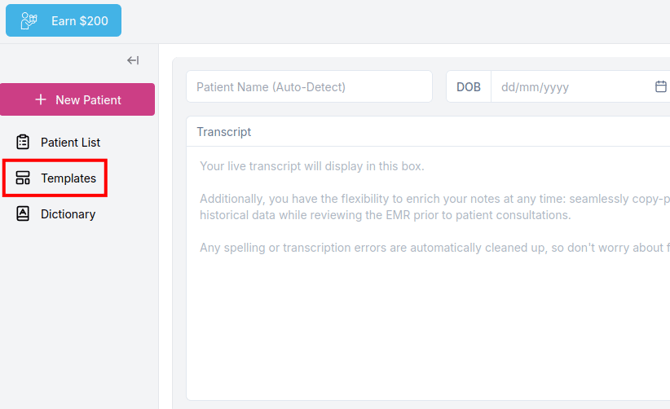
1. Navigate to the Templates page on the left sidebar to manage your templates.
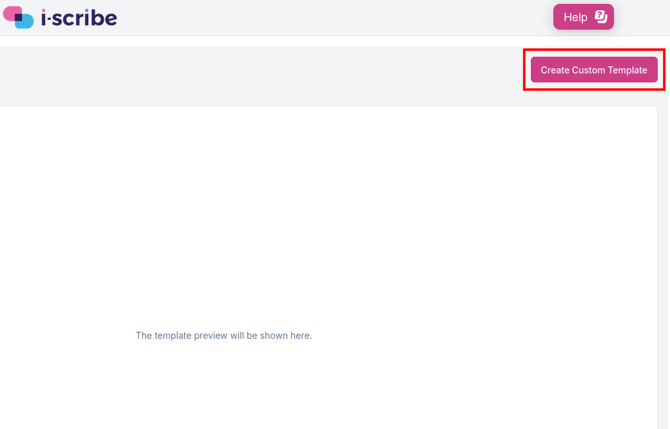
2. On the Templates page in the top right, select Create Custom Template
3. Configure your template by selecting an appropriate template type. Then, upload some example documents. We recommend uploading 2-3 examples for the best results.
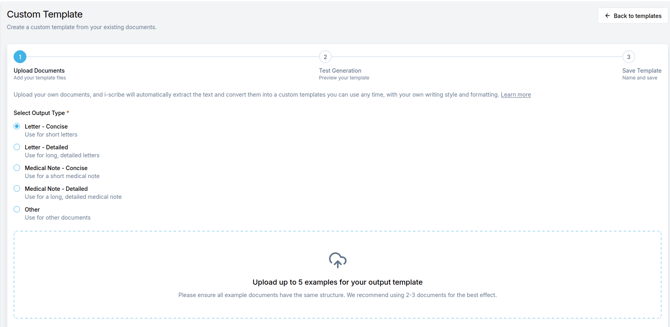
Please ensure that the documents that you upload all have the same structure to create a consistent template. Otherwise, the template may produce unpredictable results.
4. Once a document is uploaded, it will be automatically scanned into text and de-identified. You can use the eye icon to inspect the document to fix any errors from the scanning process.
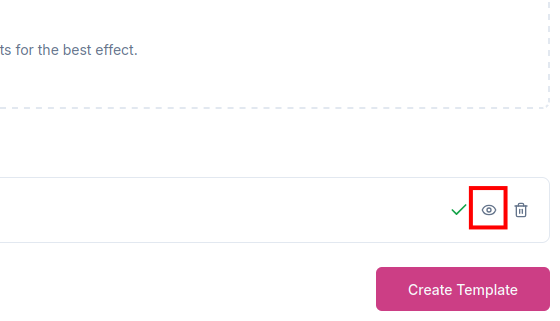
5. Click Create Template to continue.
6. Next you can preview your output template by selecting a past patient from your patient list. Once a preview consult is selected, click Generate Sample Output.
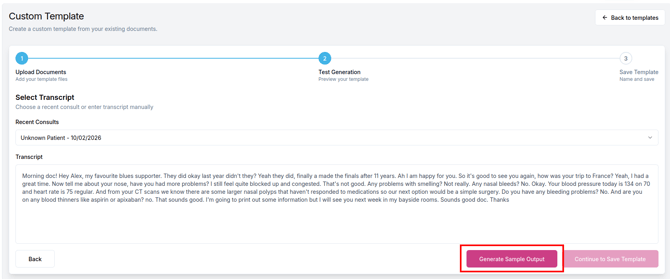
7. Review the output of your template. You may go back to the previous step to make changes. Once you are satisfied with the output, click Continue to Save Template.
If you would like more assistance with your template, please contact us by emailing support@akuru.com.au and our white-glove customisations team will assist you.
8. Finally, you will need to set a name and description for your template. Once completed, click Save Template. You will then be able to use your new template in i-scribe.
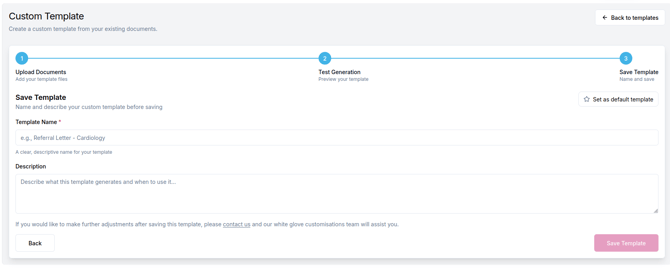
You can check Set as default template to add your template automatically to every i-scribe consult. If you don't want to use your template every consult, you may also add it only to specific consults by following this tutorial: https://learn.i-scribe.com.au/how-to-select-outputs-during-a-consult