-2.png?width=567&height=119&name=iScribe_Logo%20(2)-2.png)
Prerequisites
Before you begin, ensure you have the below information. This will have been sent via a 1password link to someone on your team. It will contain the following 3 data credentials:
- Your Akuru API Key / API Key
- Your Genie API Password / Genie API Key
- Your Genie Sender (Practice Name)
Secondly, you must have Administrator access on your Genie server
Step 1. Install the Akuru Sync Agent
- Download the Akuru Sync Agent
- Right-click the downloaded file and select Run as administrator.
- Follow the installation prompts until complete.
- Once the installation is complete, select "Open Akuru sync Web UI"
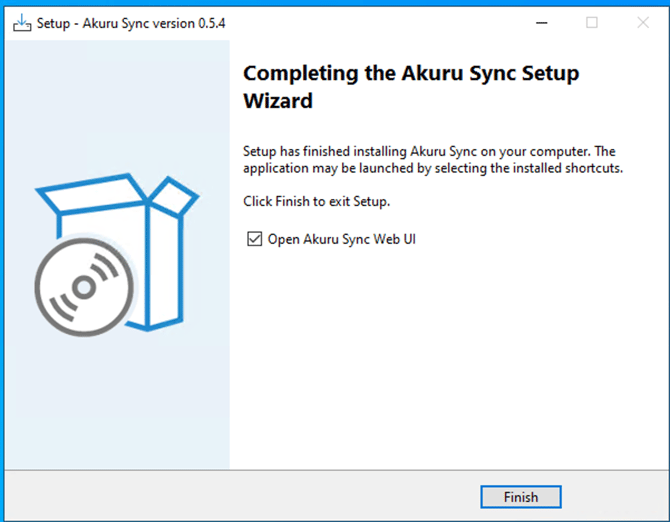

- Select advance and proceed to agent
- The agent will automatically launch
- Set your master password
- **Please record this password in a safe location, as we cannot reset your password
- **Please record this password in a safe location, as we cannot reset your password
Step 2: Configure your Akuru Sync Agent Settings for Genie
- From the left-hand menu, select the integrations tab
- Select "Add Integrations"

- Select Genie EMR
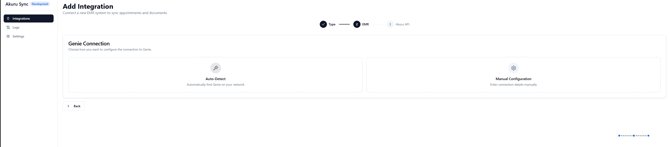
- Select "Auto Detect"
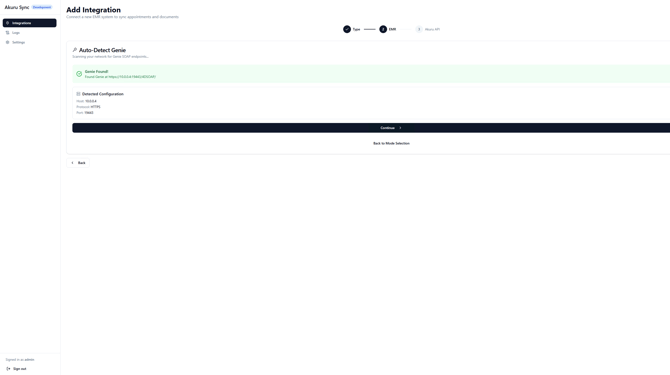
- If Genie server is hosted in a server different to the server you are installing Akuru Sync, please Select "Manual Configure and enter the Genie server IP.
2.3 Genie API Password (aka Genie API Key)
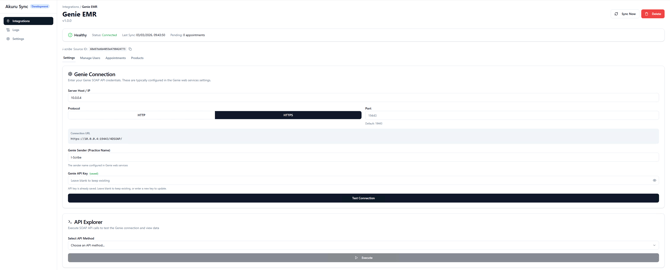
- Enter your "Genie Sender (Practice Name)" and use the "Genie API Key /Genie API password" provided (1Password link sent from info@akuru.com.au ) (see screenshot below).
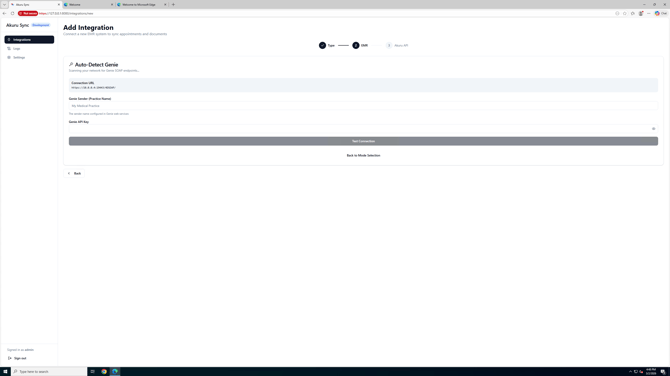
- Click Test Connection to confirm the connection is successful.
2.4 API Key / Akuru API Key
- Paste the "API Key / Akuru API key" from your onboarding email ( 1Password link, sent from info@akuru.com.au) into the fields under Akuru Integrations (see image below).
- Click Test Connection to confirm the connection is successful.
- You will then be shown the Integration Source ID. Your clinician/Practice manager will need this to complete the integration.
- You will then be shown the Integration Source ID. Your clinician/Practice manager will need this to complete the integration.
Step 3. Add Users
This will link your Genie clinicians with their i-scribe accounts.
- Select Integrations from the left-hand menu.
- Select "Manage User "
- Select "Map a user"
- Match the i-scribe email address with the name of the user.
- E.g. Dr Andrews Jones , mapped with drandrewjones@gmail.com (i-scribe email address, provided to you by the i-scribe support team)
- Match the i-scribe email address with the name of the user.
- Click "Save Mapping"
-
Please note, the status will say "Disconnected" (see image below) until the clinician activates the integration from their i-scribe account with their Integration source ID.
- If you do not have the i-scribe user email address, then this will need to be added later to activate the integration.