-2.png?width=567&height=119&name=iScribe_Logo%20(2)-2.png)
Summary:
Step 1 - Click settings
Step 2 - Manage Account
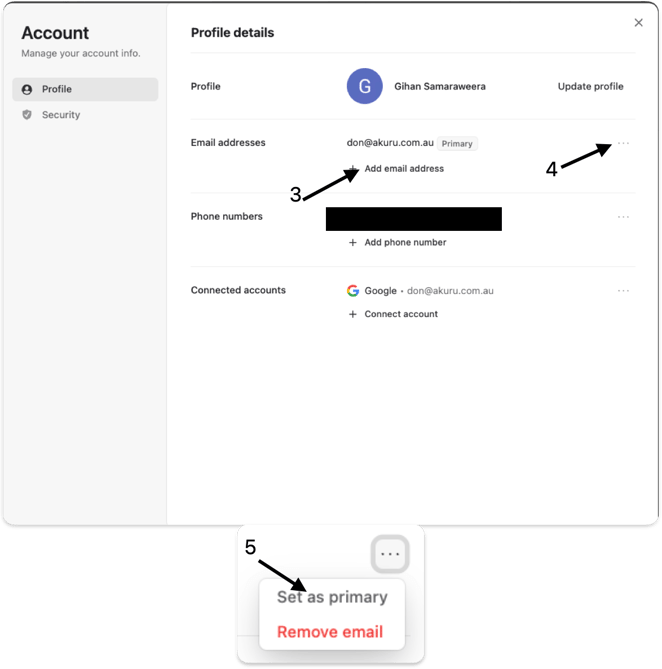
Step 3 - Select "+ add email address" and/or
Step 4 - Select "..."
Step 5 - Set the new email address to primary
Detailed Steps:
Image 1 (below):
- Arrow # 1: Click settings
- Arrow # 2: Click "Manage Account"
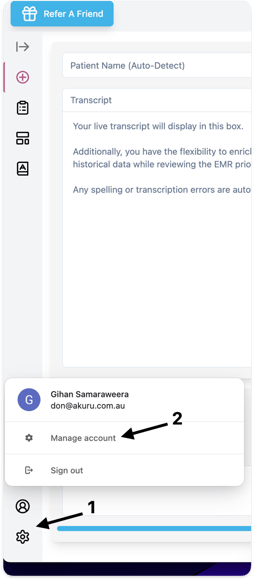
Image 2 (below):
- Arrow # 3:
- If you need to add a new email address, click "Add email address"
- It will say "Primary" next to your Primary email address. You can change which email address is your "Primary" address. This may be necessary to change for some EMR integrations.
- If you need to add a new email address, click "Add email address"
- Arrow #4:
- If you want to either "Set as primary" or "Remove email", click the three dots and select the desired option (shown by Arrow #5)
- If you don't see the option "Set as Primary", it's because the email address is already set as you Primary email address.
- If you want to either "Set as primary" or "Remove email", click the three dots and select the desired option (shown by Arrow #5)
Please let us know if you have other questions