-2.png?width=567&height=119&name=iScribe_Logo%20(2)-2.png)
Starting a Transcription
- To begin transcribing a conversation or dictation, click Start.
Tip: i-scribe never stores audio files; it listens and transcribes audio only while the button is active.
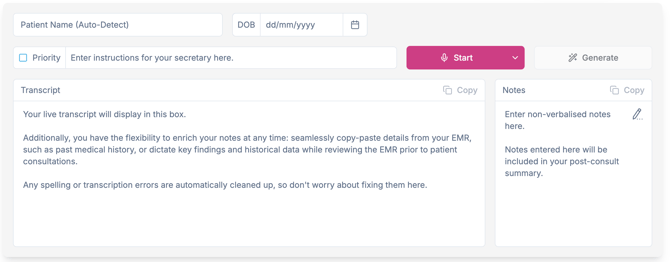
Image 1: The Start Button is in the top right of the screen, next to the Generate button.
A waveform appears when audio is being input.
To turn off the waveform, click Settings in the bottom left corner, select Preferences and deselect Audio Waveform.
Pausing a Transcription
- If you need to pause during your conversation or dictation, click Pause.
- To restart, click Resume.
Generating Documents
- When you finish your conversation or dictation, click Generate.
- Your documents will generate below the transcript box.
- Any documents selected as default templates will be generated automatically (Image 2).

Image 2: In this example, the Templates are set to Dictaphone Mode - Smart and Medical Note.
Copying Documents
- To copy your documents for storage outside of i-scribe, click Copy Text (Image 3).
- Open your storage location (e.g. EMR) and paste the document in your chosen location.
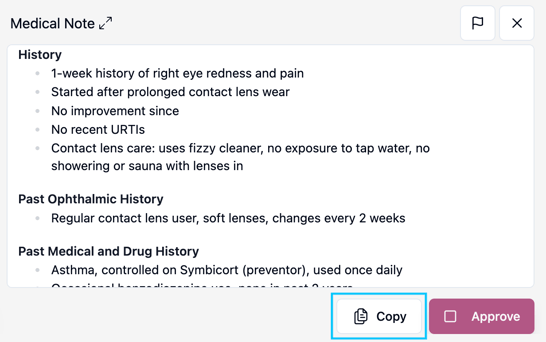
Image 3: Copy your document using the Copy button. You can also select Approve to notify your admin staff that there is a document ready to be actioned (this button is only visible when Secretarial Access is enabled).
Other Key Buttons in i-scribe
In addition to the main recording and editing workspace, the navigation menu gives you access to the following features:
Outpatient and Inpatient Lists
This is where you create new consults and manage your patient workflow.
Your outpatient and inpatient lists store transcriptions and generated documents for each patient as you see them, allowing you to organise and retrieve notes easily across clinics and ward rounds.
Default Outputs
This is where you select the templates and document outputs you would like i-scribe to generate automatically. You can set your preferred letters, notes or summaries so they are created consistently for every consult.
Dictionary
The dictionary allows you to add or edit words that may be commonly mis-transcribed.
This is particularly useful for local place names, clinician names, medications, or specialty-specific terminology to improve spelling accuracy in your final documents.
Profile
Manage your account details here, including updating your password and configuring two-factor authentication.
Settings
Settings allows you to customise how i-scribe works for you. Here you can adjust data retention preferences, connect integrations, and invite secretaries or team members.
Help
Access support information, knowledge base articles, and product announcements.
If you need assistance, this is the best place to start.
Earn $200
Learn about the i-scribe referral programme and how to receive $200 for successful referrals.