-2.png?width=567&height=119&name=iScribe_Logo%20(2)-2.png)
Mobile Interface Overview
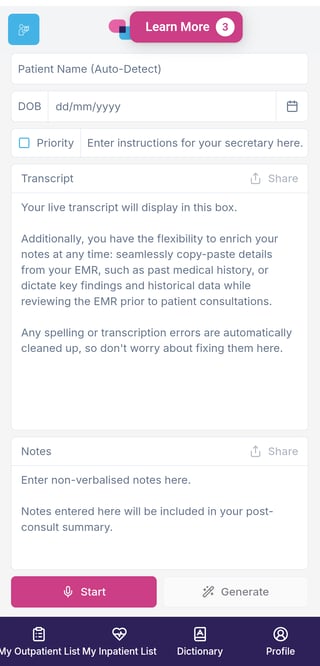
The i-scribe phone interface is designed to give you full functionality on the go, with a simple, streamlined layout. Below is a guide to each section and button.
Patient Name and Date of Birth: At the top of the screen, you can enter the patient’s name and date of birth manually. If you mention the patient’s details during your consultation, i-scribe will automatically detect and populate these fields for you.
If you have secretarial access enabled, you can check the Priority button to flag urgent documents and enter specific instructions for your secretary, which will be visible to them when reviewing the consult.
Transcript Box: The transcript box displays your live transcription while you are dictating or speaking during the consultation. You can review the transcript in real time as it appears.
Start Button: Tap Start to begin transcribing. Once pressed, i-scribe will begin capturing and converting your speech into text within the transcript box.
Generate Button: When you have finished transcribing, tap Generate. This will process the transcript and create your selected documents (e.g. letters, notes, reports) according to your default outputs and templates.
Notes Section: The Notes section allows you to manually type additional information during the consultation. Anything entered here will be incorporated into the final generated output alongside your transcript.
My Outpatient List: Selecting My Outpatient List takes you to your outpatient workflow, where you can open existing patients, create new consults, and access previous transcriptions and generated documents.
My Inpatient List: Selecting My Inpatient List takes you to your inpatient workflow, allowing you to access patients admitted under your care, create new consults, and review prior inpatient documentation.
Dictionary: The Dictionary allows you to add or edit commonly mistranscribed words. This is particularly useful for medication names, clinical terminology, frequently used phrases, and names of colleagues or institutions. Custom entries help improve transcription accuracy over time.
Profile: The Profile section is where you manage your account settings, security preferences, and personal configuration options. You can adjust your preferences here to suit your workflow.
Inpatient and Outpatient Lists
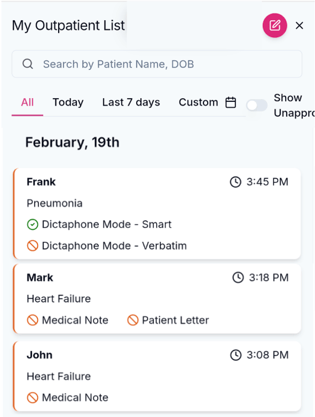
The Inpatient List and Outpatient List are where you manage your clinical workflow and create consults.
In both lists, you can use the search tool to find patients by name, date of birth, or MRN.
Inpatient List
Use the Inpatient List to search for admitted patients and add consults. To start a new consult, simply click on the patient’s name in the list, and select Create Consult.
Outpatient List
Use the Outpatient List when seeing patients in clinic. To begin a new consult, click the round pink button at the top of the screen. This creates a new outpatient consult.
You can return to either list at any time to review previous transcripts and generated documents.
Patients will remain in your list for the duration specified in your data retention settings, after which they will be automatically removed in accordance with your configured timeframe.
Mobile interface: Video guide