-2.png?width=567&height=119&name=iScribe_Logo%20(2)-2.png)
Seeing a New Patient in the Outpatient Setting.
This guide explains how to create and complete a new outpatient consult in i-scribe.
Step 1: Open Your Outpatient List
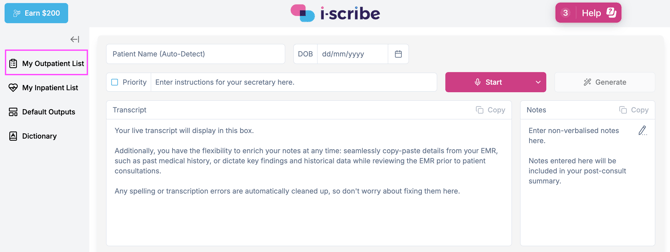
On the left-hand side of i-scribe, click My Outpatient List.
This will open your outpatient patient list.
Step 2: Create a New Patient
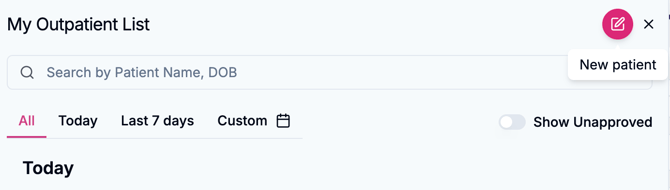
At the top of the screen, click the pink “New Patient” button.
Enter the required patient details.
Once created, open the patient record.
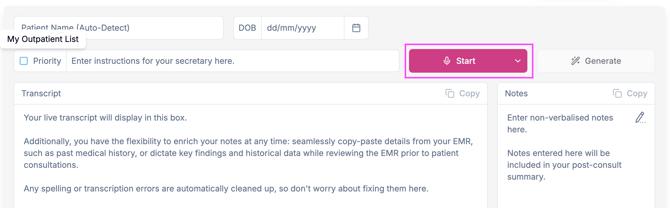
Click Start to begin transcribing.
You can now dictate or begin your consultation with the patient.
Step 3: Generate Your Documents
When your consultation is finished, click Generate.
i-scribe will create your selected documents (e.g. clinic letter, note, summary) based on your default outputs.
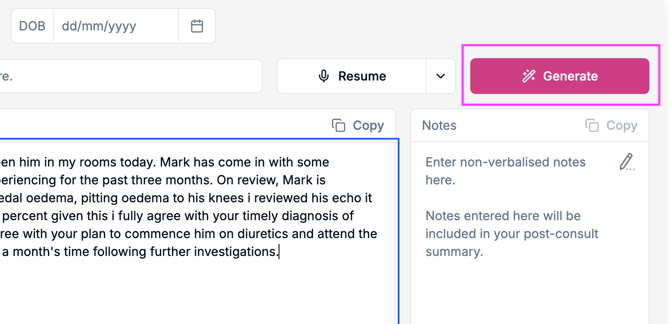
Review and edit as required.
Step 4: Finding the Patient Again
After completing the consult, return to My Outpatient List.
The patient will remain visible in your list.
You can also search for a patient using their name and date of birth in the search bar at the top of the outpatient list.