-2.png?width=567&height=119&name=iScribe_Logo%20(2)-2.png)
Inpatient List – Managing Ward Patients in i-scribe
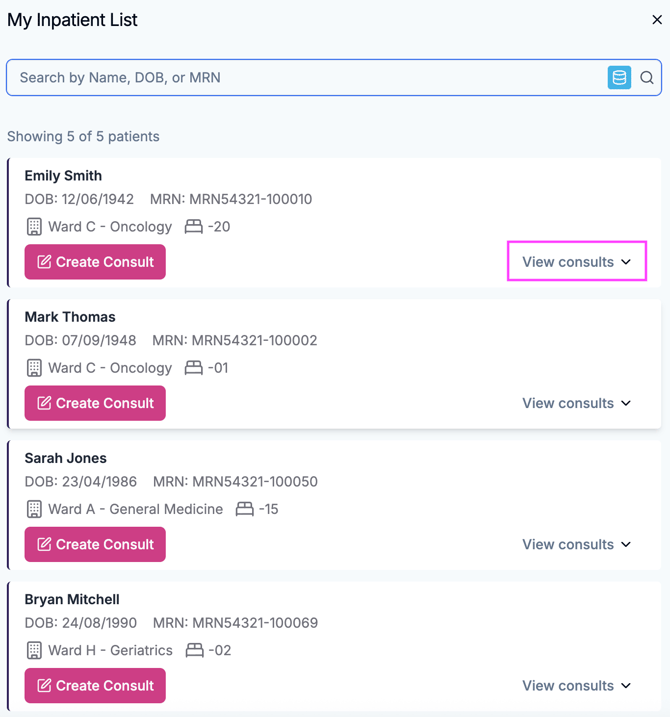
My Inpatient List allows you to manage all patients you are reviewing on the hospital wards during your shift. From this list, you can add patients, create consults, generate documentation, and review previous encounters.
Accessing My Inpatient List
On the left-hand side of i-scribe, click My Inpatient List.
This list displays all patients you have added for the day and are managing as inpatients.
Integrated Hospital List Toggle
At the top of the inpatient list, you will see a toggle:
-
Blue (highlighted) – The integrated hospital list is active.
-
You can search for patients directly from the hospital system.
-
-
Grey (off) – The integration is disabled.
-
You will not be able to search for patients within the hospital system.
-
Ensure the toggle is switched on (blue) to search for admitted patients.

Adding a Patient to your Inpatient List
-
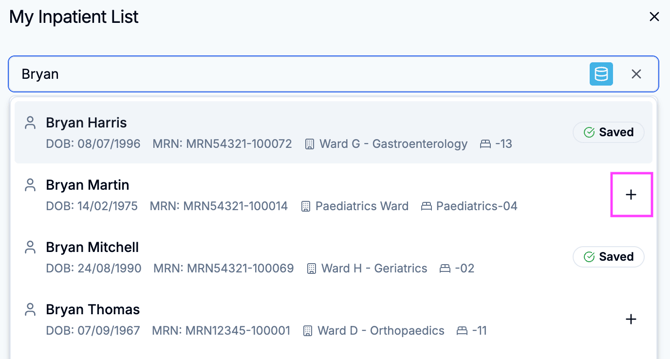
Use the search bar at the top of the list.
-
Enter the patient’s:
-
Name
-
Date of birth
-
MRN (Medical Record Number)
-
-
Locate the correct patient in the search results.
-
Click the “+” button next to their name.
The patient will now appear in your Inpatient List.
Creating a Consult
Once a patient has been added:
-
Click Create Consult under the patient’s name.
-
You will be taken to the main i-scribe screen.
-
Click Start to begin:
-
Conducting your consultation with the patient, or
-
Dictating your clinical notes.
-
During your shift, you can click Create Consult any time you see the patient. Each time you do this, a new consult will be created and saved under that patient.
Generating Documentation
After completing the consultation:
-
Click Generate.
-
i-scribe will create your selected documents underneath the consult (e.g. a medical note).
You can generate documentation multiple times as needed.
Reviewing Patients During Your Shift
You can return to the Inpatient List at any time during your shift.
-
Patients remain visible on your list.
-
You may access and use i-scribe for the same patient multiple times in a day.
-
Each time you create a consult, it will appear under that patient’s record and stay there until the related consult documents are sent to the EMR.
To review previous encounters:
-
Click View Consults under the patient’s name.
-
You will see all consults completed for that patient during the day.