-2.png?width=567&height=119&name=iScribe_Logo%20(2)-2.png)
How to Use the i-Scribe Operation / Procedure Report
This guide explains how to create an Operation or Procedure Report using i-scribe, either as a default template or within an individual consultation.
Before You Begin
Ensure that you:
-
Have access to your i-scribe account
-
Have a new patient consultation open, either from:
-
My Outpatient List, or
-
My Inpatient List
-
Option 1: Set the Operation/Procedure Report as Your Default Template (Optional)
If you frequently create operation or procedure reports, you may wish to set this template as your default.
-
Log in to i-scribe.
-
Navigate to your template settings.
-
Select Operation/Procedure Report as your default template.
-
Save your settings.
This will automatically load the template for future consultations.
Option 2: Select the Operation/Procedure Report Within a Consultation
If you prefer to select the template per consult:
-
Log in to i-scribe.
-
Open a new patient consultation from:
-
My Outpatient List, or
-
My Inpatient List.
-
-
Click Select Outputs.
-
Search for and add Operation/Procedure Report.
-
Confirm your selection.
Creating the Operation/Procedure Report
Once your consultation is open and the correct output template is selected:
-
Click Start to begin dictation.
-
Dictate your operation or procedure findings clearly.
-
You may dictate punctuation (e.g. “full stop”, “comma”) if you prefer.
-
Dictating punctuation is optional — the system will structure the report appropriately.
-
-
When you have finished dictating, click Generate.
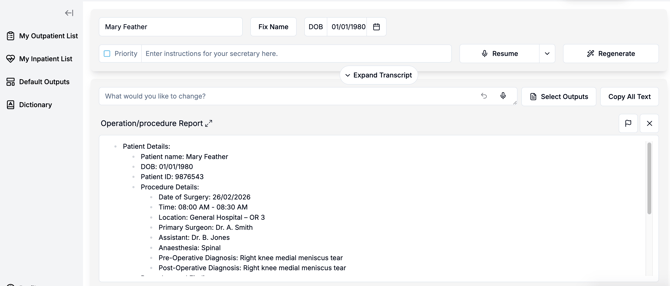
Finalising the Report
After clicking Generate:
-
The Operation/Procedure Report template will automatically populate with your dictated content.
-
Review the report for accuracy.
-
You can then:
-
Copy and paste the report into your EMR, or
-
Send/export it directly to your EMR (if integrated).
-
Tips for Best Results
-
Ensure you are in a new consultation before starting dictation.
-
Speak clearly and at a natural pace.
-
Include all relevant operative details in a logical order.
-
Review the generated document before finalising.