What your patients receive and see
What patients see in i-consult: the SMS link, the pre-visit questionnaire landing page, date-of-birth verification, the adaptive chat, and the history generated for the clinician.
Most clinicians never open the i-consult dashboard, so it helps to know exactly what your patient goes through after you (or your practice) creates their episode. This page walks the whole journey, from the text message to the history that lands in front of you, so you know what to expect and can answer a patient who asks "what is this link?"
The short version: your patient gets a secure link by SMS, confirms their date of birth, then answers an adaptive set of questions by typing or speaking. Their answers are turned into a structured history that reaches you before the appointment.
The patient's journey, step by step
An SMS arrives with a secure link. Before the appointment, the patient receives a text message containing a unique, time-limited link to their pre-visit questionnaire. You don't have to send anything; the SMS is scheduled automatically when the episode is created.
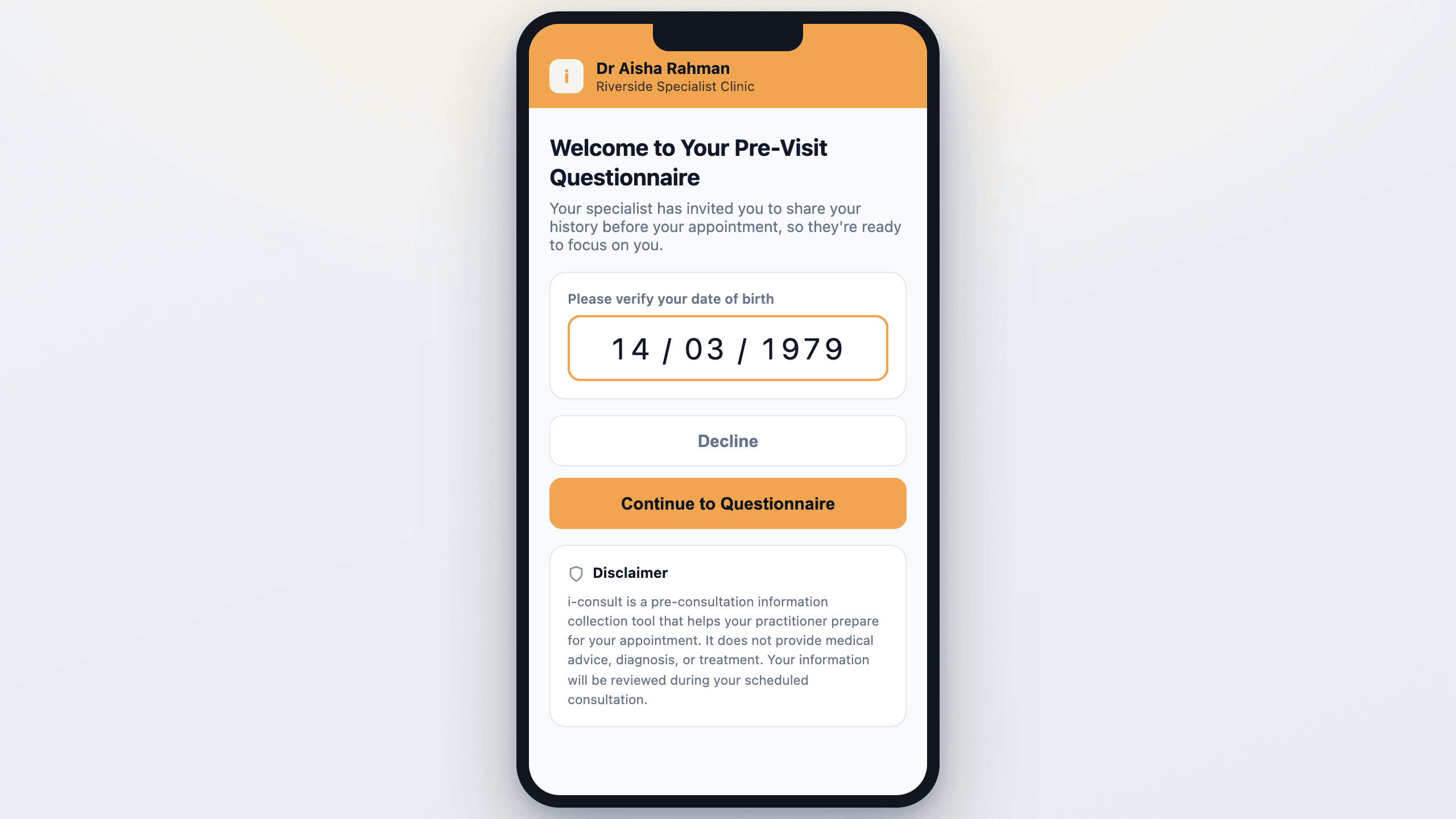
The landing page shows your name. Tapping the link opens a page headed "Welcome to Your Pre-Visit Questionnaire", which displays your name, title and practice, so the patient can see straight away that this is from their clinician, not a stranger.
They verify their date of birth. Before anything else, the patient is asked to confirm their date of birth (in DD/MM/YYYY format) on a "Please verify your date of birth" screen. They can choose Continue to Questionnaire to proceed, or Decline.
They answer an adaptive chat by typing or speaking. The questionnaire is a conversation rather than a static form. It asks follow-up questions based on what the patient has already said. They can Type their answers or Speak them aloud, switching between the two whenever they like.
A progress indicator shows how far they've come. A Consultation Progress tracker moves through three tiers (Essential, Important and Complete) so the patient can see they're making headway and roughly how much is left.
The answers become a structured history. When the patient finishes, their responses are synthesised into a Medical History page and an Additional Notes / Comments box, the material that reaches you ahead of the appointment.
What the patient sees at each stage
The disclaimer
Before the patient starts, i-consult shows a clear "Disclaimer" so there's no confusion about what the tool is for. It reads, in full:
"i-consult is a pre-consultation information collection tool that helps your practitioner prepare for your appointment. It does not provide medical advice, diagnosis, or treatment. Your information will be reviewed during your scheduled consultation and may not be reviewed beforehand. If your symptoms change in nature or severity before your consultation, contact your practitioner directly for advice."
This wording is deliberate: it tells the patient plainly that i-consult collects information to help you prepare, that it does not give medical advice, and that they should contact you directly if things change. You can reassure any patient who asks that the questionnaire is not a substitute for their appointment with you.
Date-of-birth verification
Access is protected by date-of-birth verification. If a patient enters the wrong date, they can try again, but after 3 failed attempts access is locked. This stops the wrong person opening the link while keeping it easy for the right patient. If a patient tells you they've been locked out, their episode link can be reissued.
Typing or speaking
The chat supports two input modes the patient can switch between at any time:
- Type: a text box with the placeholder "Type your response here..."
- Speak: the patient talks and their words are transcribed for them.
A few first-time tips appear to orient new patients, including "Try Speaking for Quicker Input" and a short "How This Smart Questionnaire Works" explainer (Personalised Questions / Type or Speak / Resume Anytime). For the detail of how voice works, see Speaking instead of typing.
Pausing partway through
Patients don't have to finish in one sitting. Their progress is saved automatically, and the same SMS link picks up where they left off. This is a common patient question; the full answer is in Can a patient pause and come back?
The completion screen
When the patient finishes, they see a "Thank you!" screen confirming where their information has gone: "Your information has been sent to Dr <your clinician's name>." The screen shows your name, so the patient knows their answers reached the right clinician. A patient who chooses not to continue instead sees a "No problem" screen reassuring them they "can still discuss your history during the appointment."
What reaches you
The patient's answers are turned into a structured Medical History page (marked Complete once generated), which includes their patient information and a structured medical history, plus an Additional Notes / Comments box. That box invites the patient to add anything else in their own words; its placeholder asks "Is there anything else you'd like your doctor to know?" (up to 2000 characters). This is the material that's ready for you before the consultation.
You remain responsible for the clinical history. Everything the patient provides is self-reported and unverified, and i-consult does not give patients medical advice, diagnosis, or triage. The questionnaire includes safety checks that can flag a concerning response for you to review. This is a prompt for your attention, not an emergency-response or triage service. Always review and confirm the generated history yourself before relying on it, and make sure patients know to contact you or emergency services directly if they're unwell.
i-consult collects information to help you prepare. It is not a consent process and does not constitute informed or written consent. Consent remains part of your consultation as usual.
Related articles
- Speaking instead of typing: how the voice mode works for patients.
- Can a patient pause and come back?: the short answer to a common patient question.
- A patient hit an error / voice isn't working: what to tell a patient who runs into a problem.
Was this guide helpful?