Dictate edits straight into your note
Speak an edit directly into a generated output. i-scribe intelligently applies your correction in place.
Instead of typing your changes or using the change box at the top, you can speak an edit directly into the exact spot in an output where you want it. i-scribe applies the correction intelligently, not as raw pasted text.
This inline dictation appears once you've generated a document. Run the consult and generate your outputs first, then open the output you want to edit.
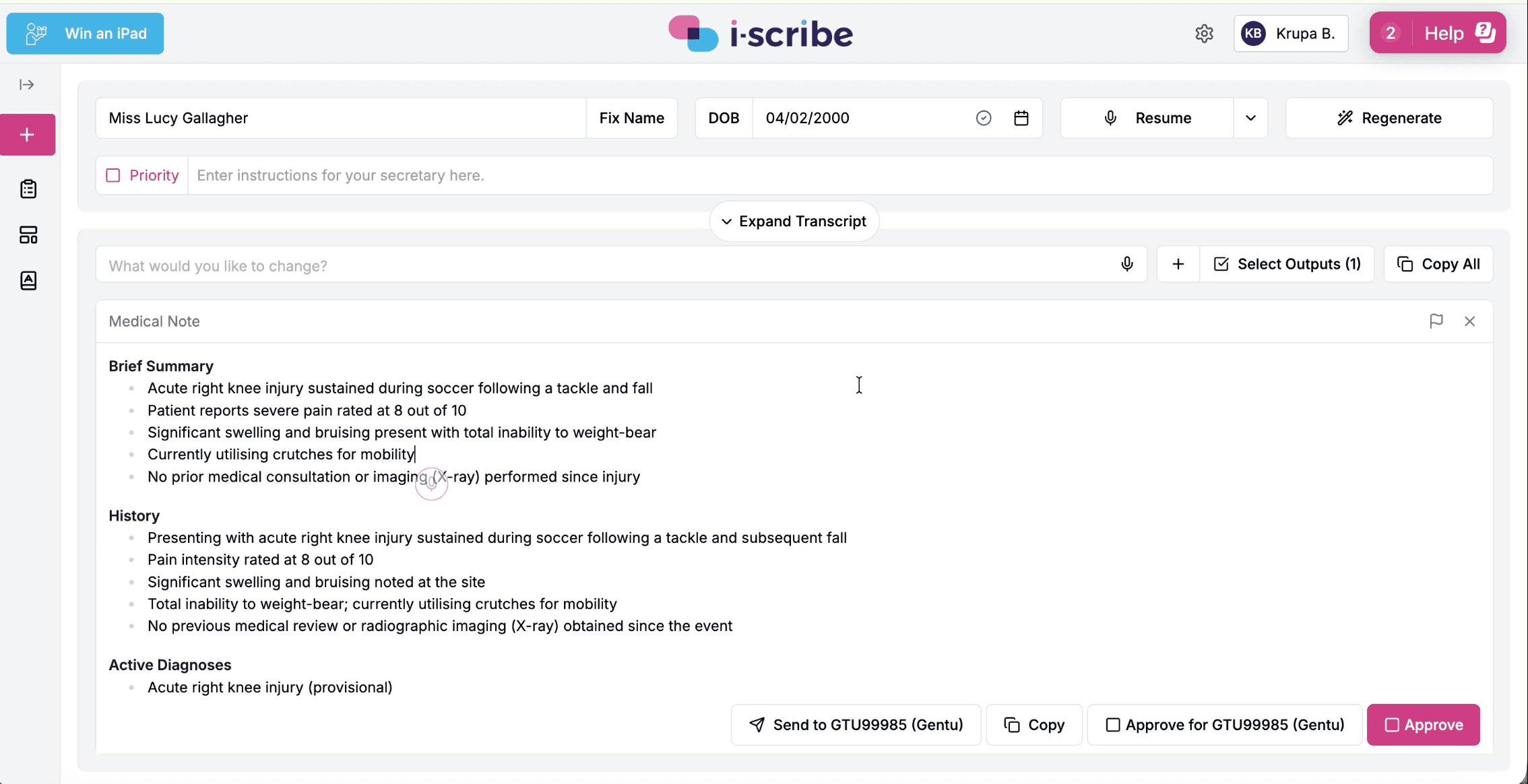
Step 1: Place your cursor
Open the output (for example your Medical Note) and hover over or click the point in the text you'd like to add to or change. A microphone marker appears at that spot.
Step 2: Start recording
Select the microphone to begin. Moving bars (a waveform) confirm i-scribe is picking up your voice. Speak your change naturally.
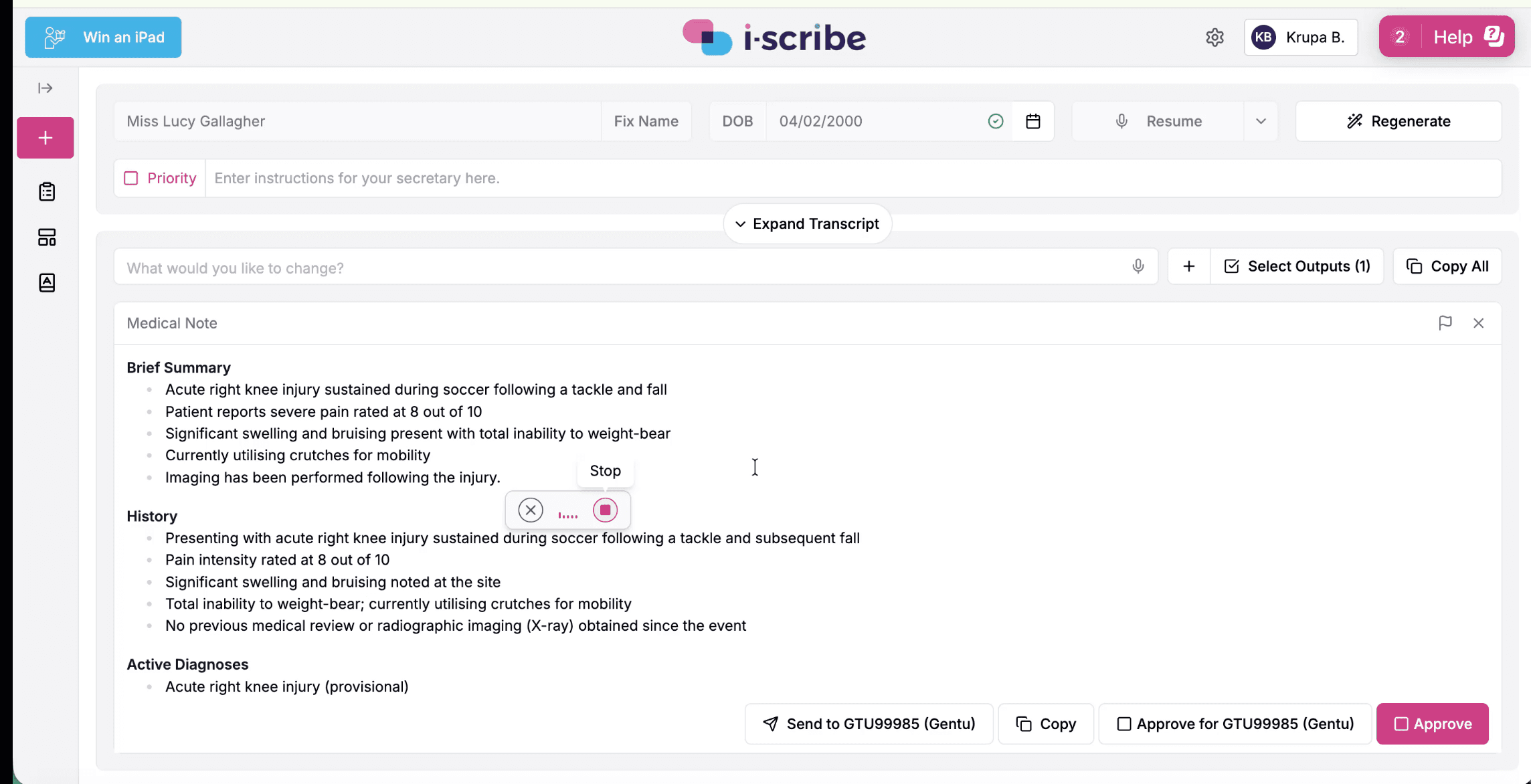
You can dictate a plain-language correction rather than the exact final wording. For example: "Correction: Patient reports the injury occurred approximately two hours ago during a competitive soccer match. Pain is localised to the left knee."
Step 3: Stop when you're done
Select the stop button (the red square). Use the ✕ beside it to cancel without saving the recording.
Step 4: Output is updated
Once you stop, i-scribe processes what you said and updates the output in place. It applies the change in context, so in the example above the note is revised to the left knee throughout and the new timing detail is added to the relevant section. Review the update before you approve or send.
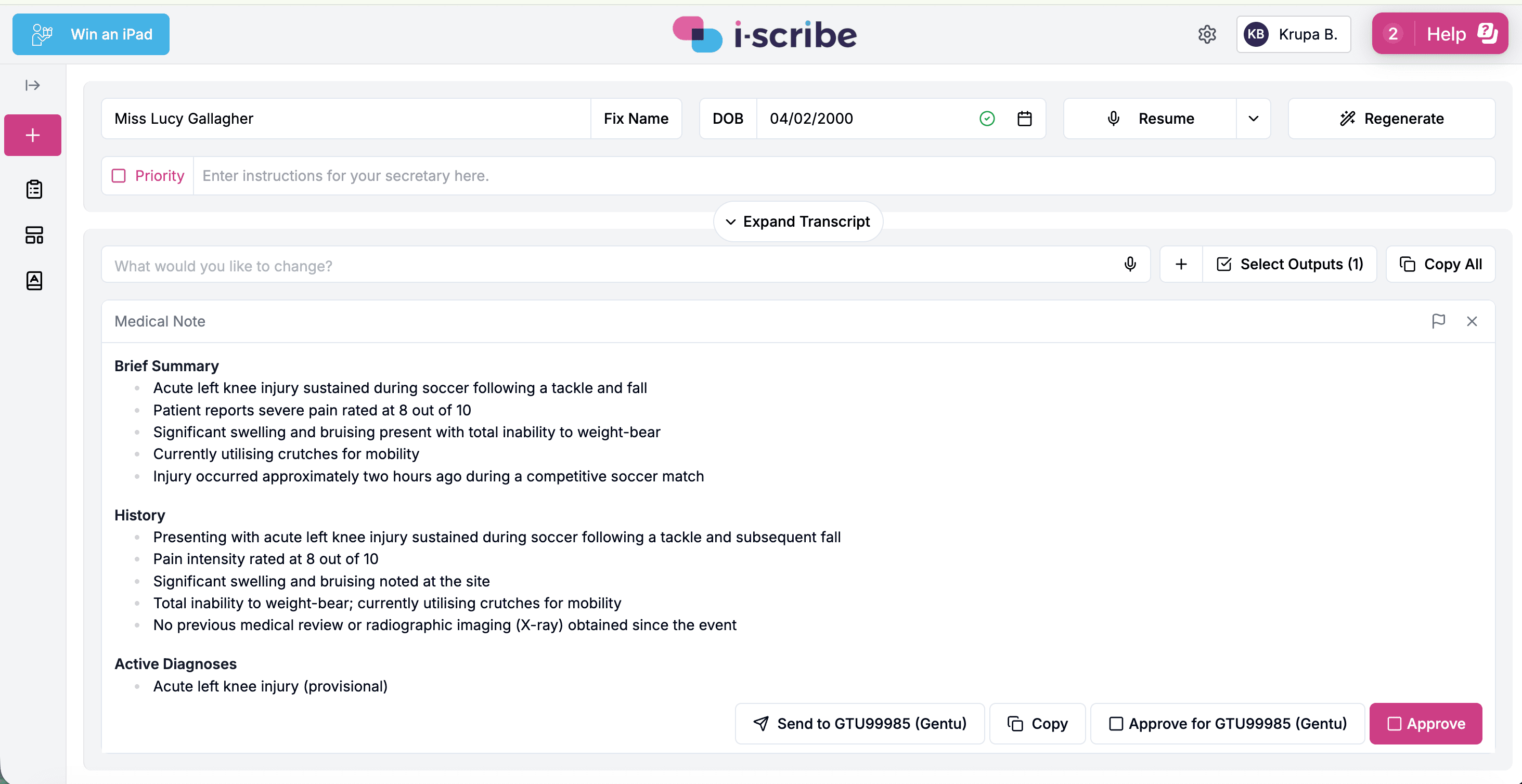
Always read the updated output before approving. Dictated corrections are applied intelligently, but you remain responsible for the final content.
You're all set
That's inline voice dictation. Place your cursor, speak your change, and i-scribe applies it in context. Use it any time you want to refine an output without retyping.
Want to add a brand new note or letter instead of editing an existing one? See Add a blank output and dictate into it.
If you need any help, reach out to our support team at support@akuru.com.au.
Was this guide helpful?