How To Change, Remove, or Add an email Address To Your Account
Step 2 - Manage Account
The most efficient way to do this is via your i-scribe account. If we were to change this manually for you, it requires multiple steps of identification for security reasons.
Summary:
Step 1 - Click settings
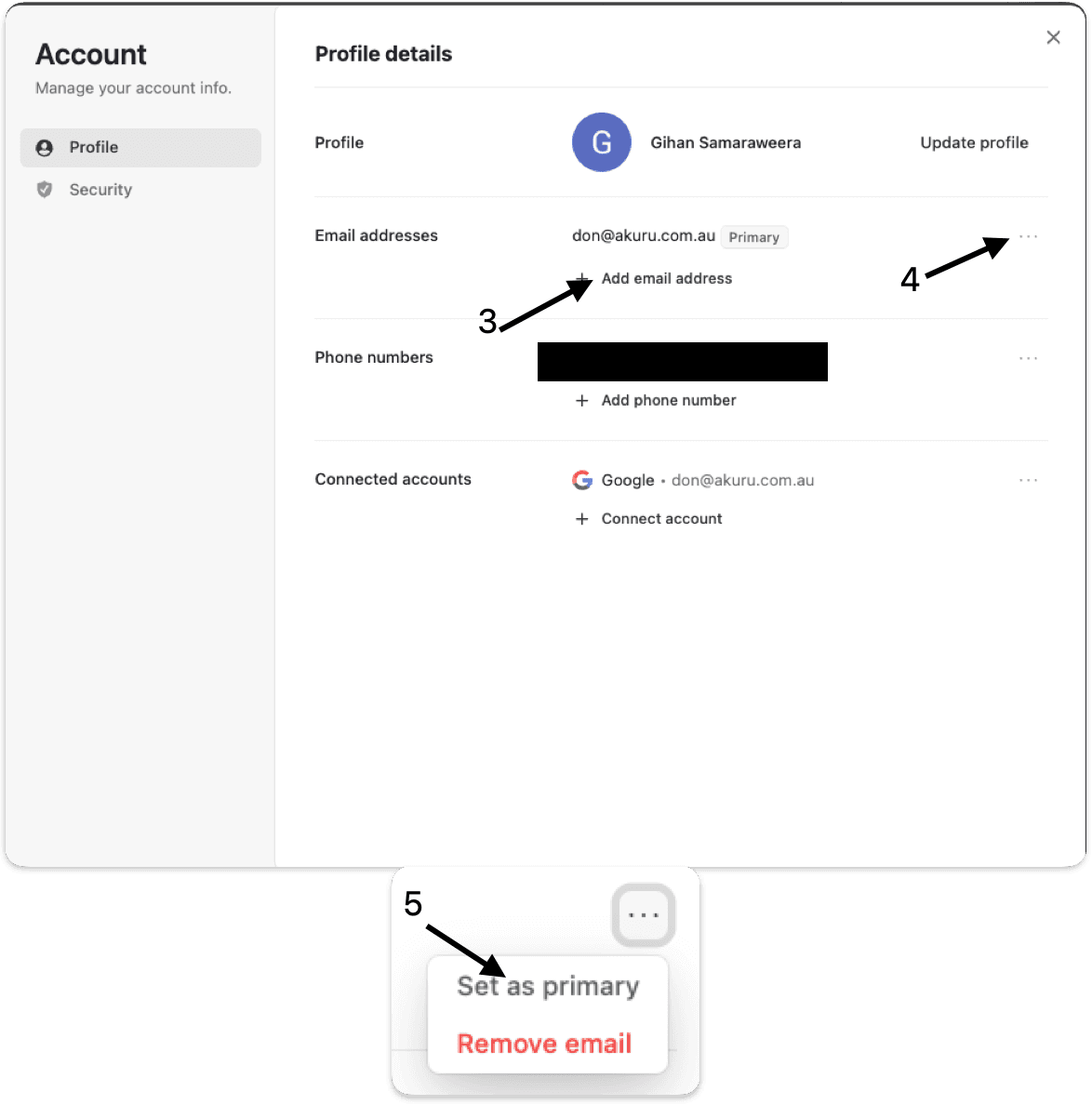
Step 2 - Manage Account Step 3 - Select "+ add email address" and/or Step 4 - Select "..." Step 5 - Set the new email address to primary
Detailed Steps:
Image 1 (below):
- Arrow # 1: Click settings
- Arrow # 2: Click "Manage Account"
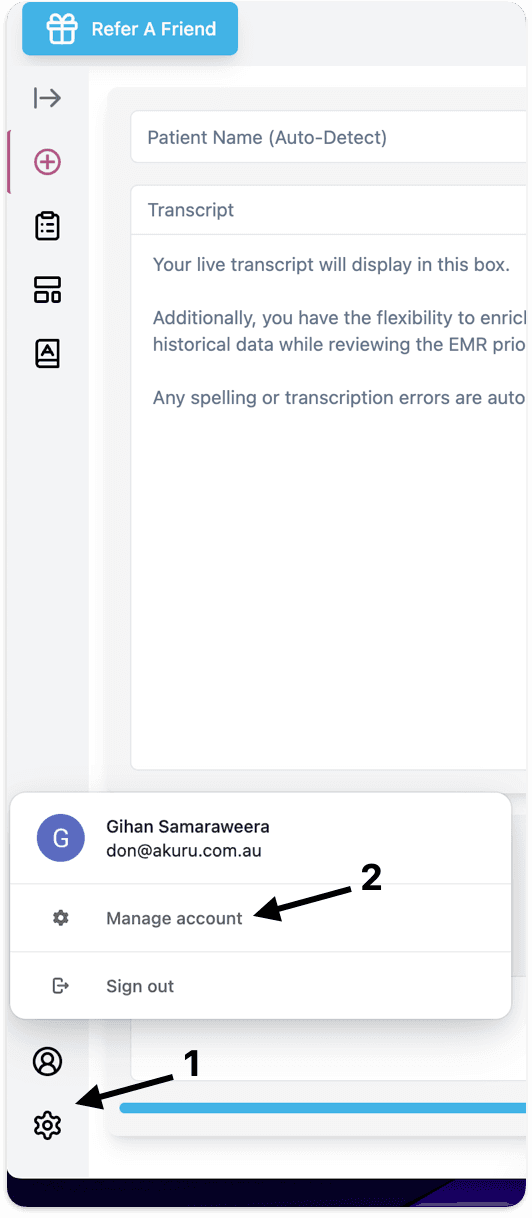
Image 2 (below):
- Arrow # 3:
- If you need to add a new email address, click "Add email address"
- It will say "Primary" next to your Primary email address. You can change which email address is your "Primary" address. This may be necessary to change for some EMR integrations.
- Arrow #4:
- If you want to either "Set as primary" or "Remove email", click the three dots and select the desired option (shown byArrow #5)
- If you don't see the option "Set as Primary", it's because the email address is already set as you Primary email address.
Please let us know if you have other questions
Was this guide helpful?