How to Send i-scribe Letters to Gentu
With the i-scribe Gentu integration, you can automatically send letters from i-scribe in Gentu. This article will detail how to set up this feature in Gentu and i-scribe.
Introduction
With the i-scribe Gentu integration, you can automatically send letters from i-scribe in Gentu. This article will detail how to set up this feature in Gentu and i-scribe.
Prerequisites
You need to have set up the i-scribe Gentu integration.See the Gentu Integration article for more information if you have not yet set up the i-scribe integration with Gentu.
Setting up Gentu
For i-scribe to send letters into Gentu, you need to have a letter template that is set up to use thedictation.text attribute in Gentu. Here's the process for setting up the letter template if you do not yet have one.
- In Gentu, navigate toSettings.
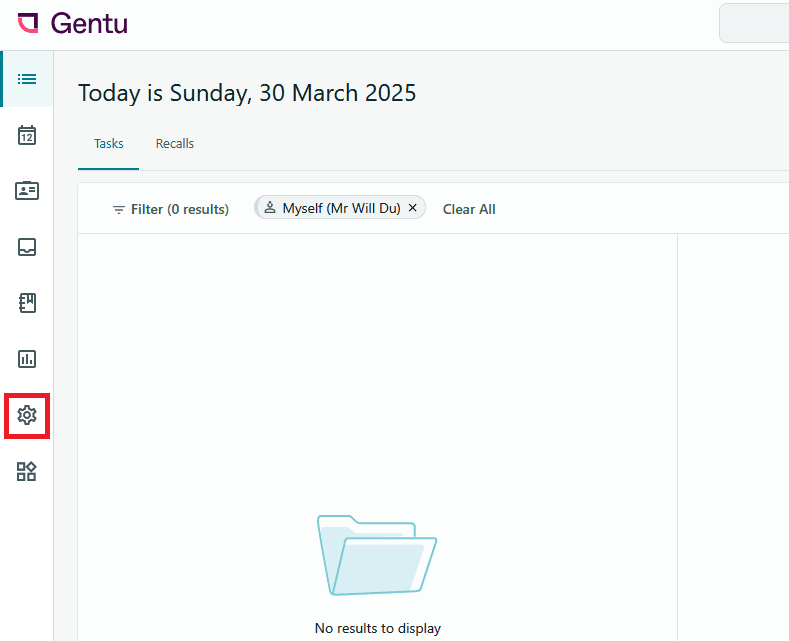
Screenshot 2025-03-30 163559 - SelectLetter Templates from the Templates section.
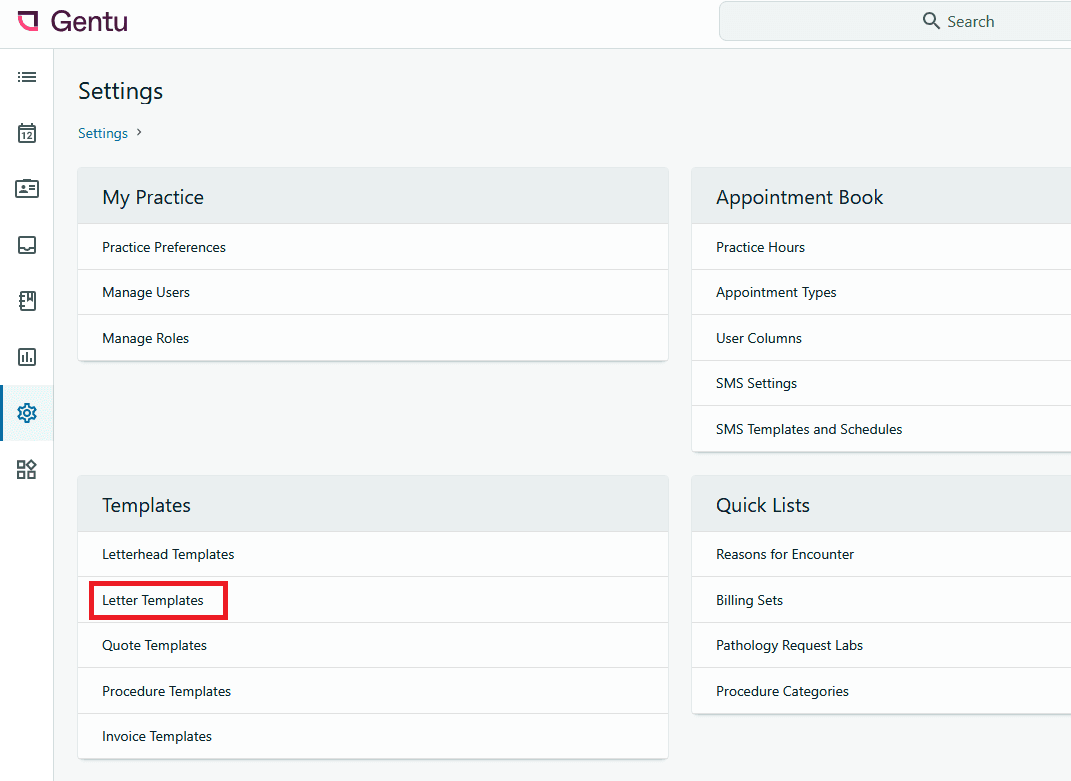
Screenshot 2025-03-30 163611 - Click\+ Add.
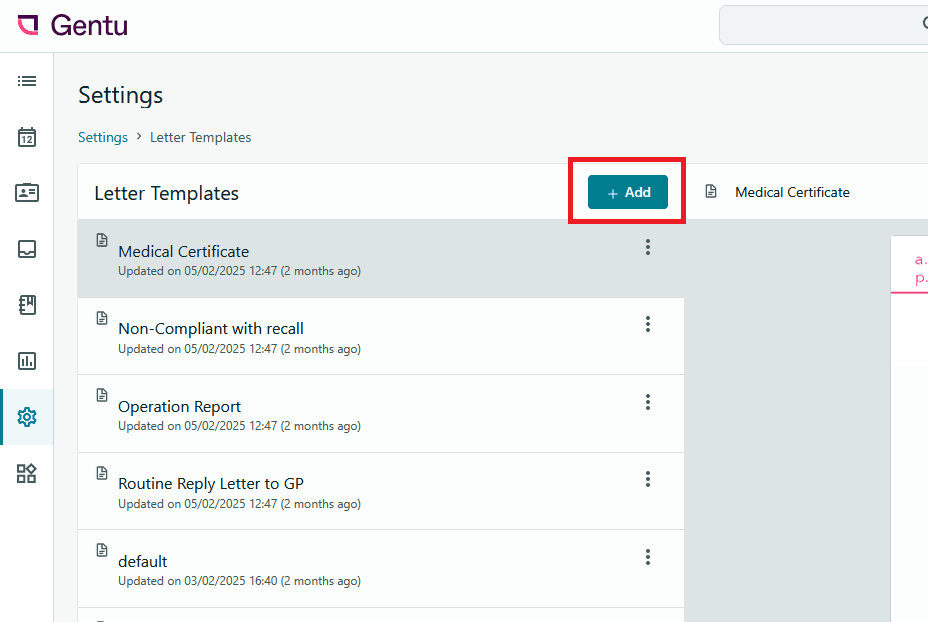
Screenshot 2025-03-30 163623 - Give the template a name (e.g. i-scribe Letter Template).
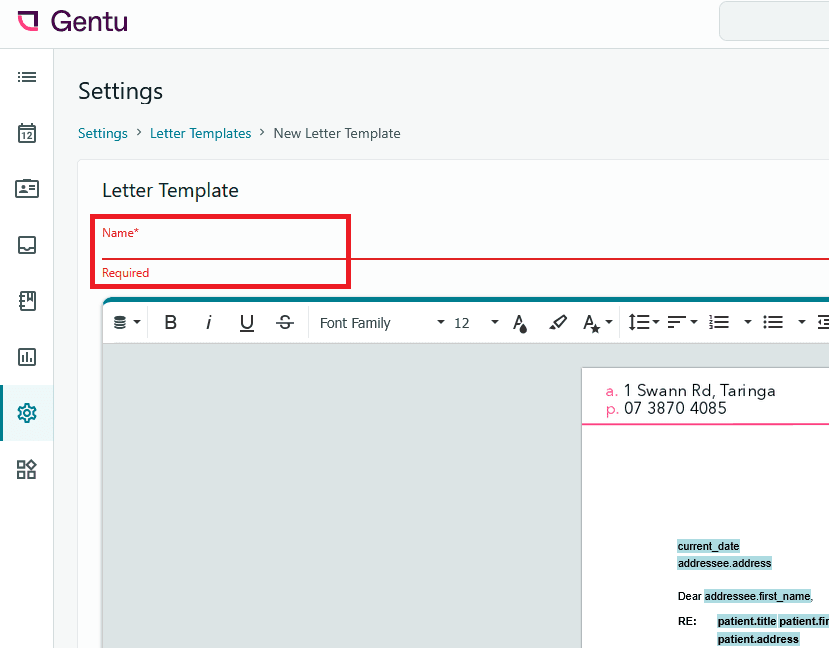
Screenshot 2025-03-30 163646 - Customise the format letter template to your preference.
- Move your cursor to select the region where you want the letter to be inserted in the template.
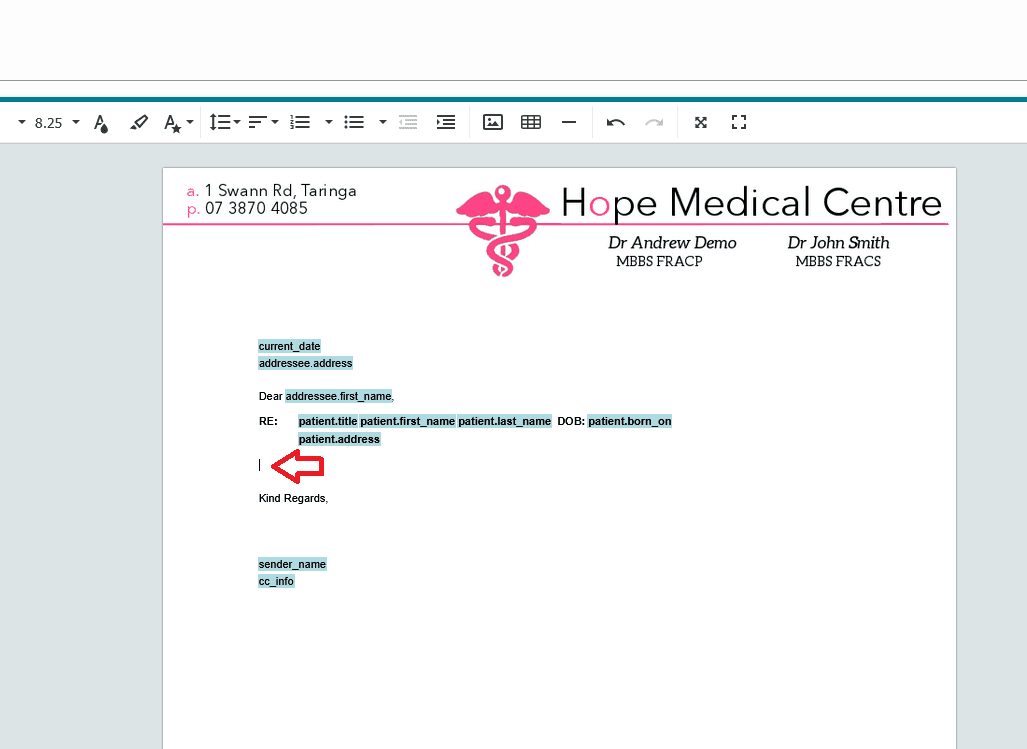
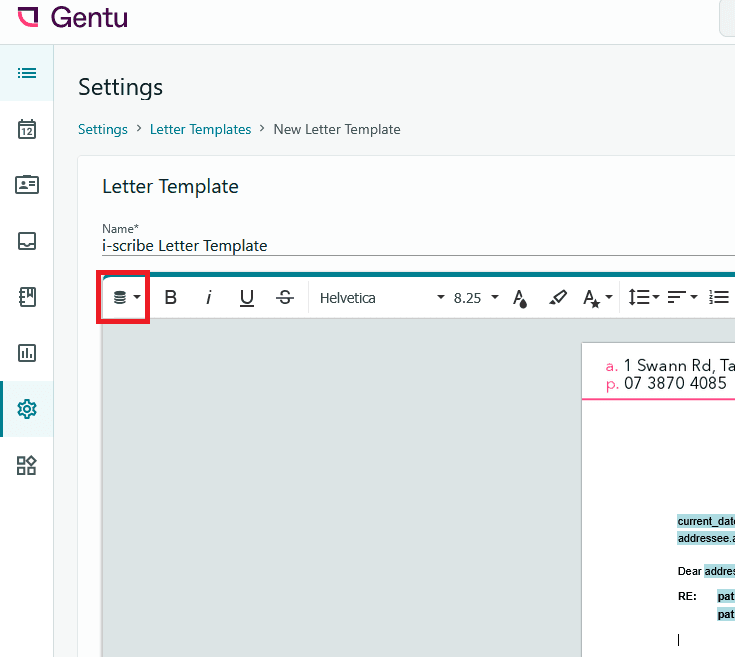
Screenshot 2025-03-30 163748 - Click on the References () icon in the top left.

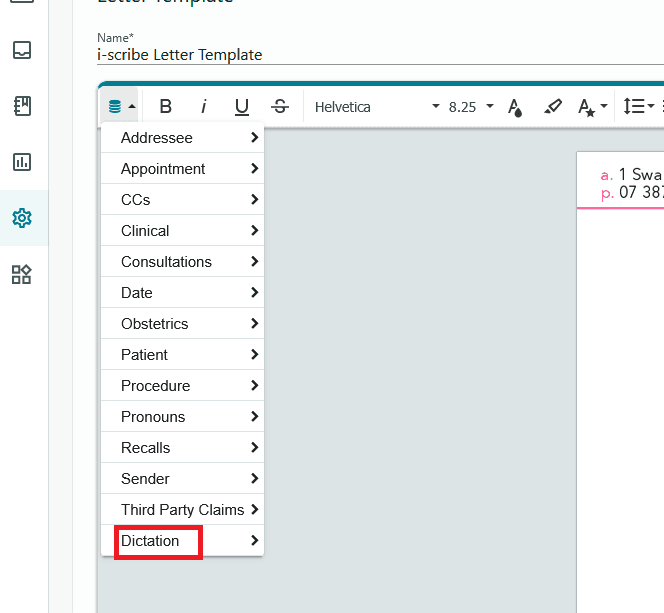
Screenshot 2025-03-30 163805 - SelectDictation from the dropdown.
Screenshot 2025-03-30 163846 - SelectVoice Dictation Text.
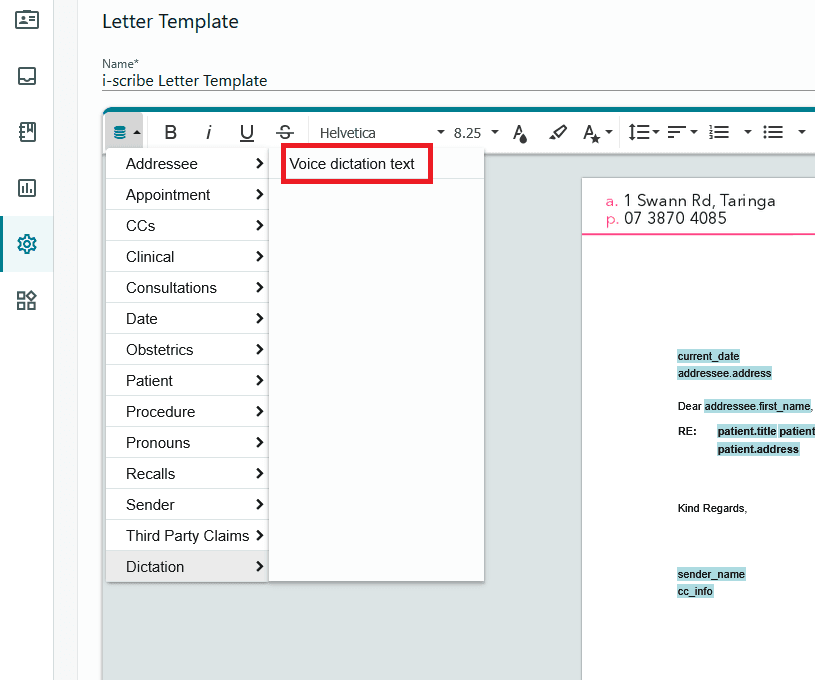
Screenshot 2025-03-30 163900 - You should now see thedictation.text field in the text. This is where your letter will be inserted.
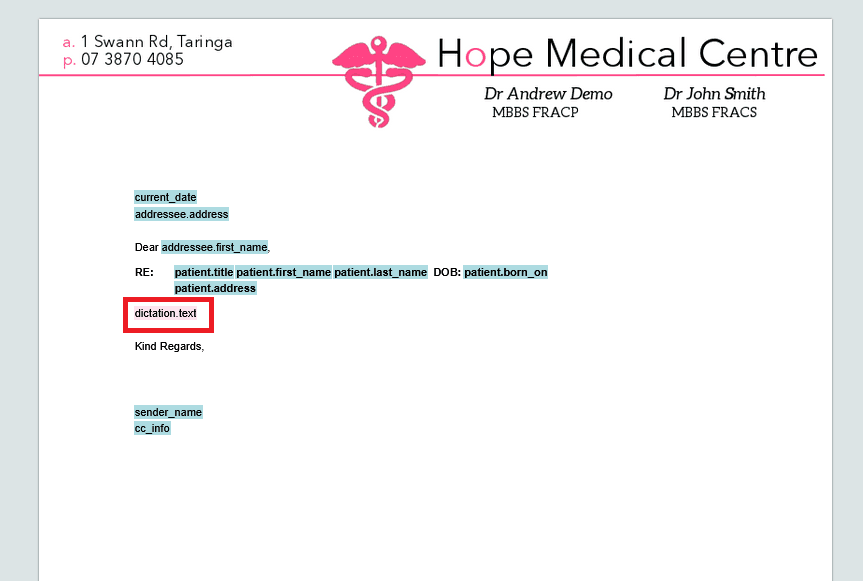
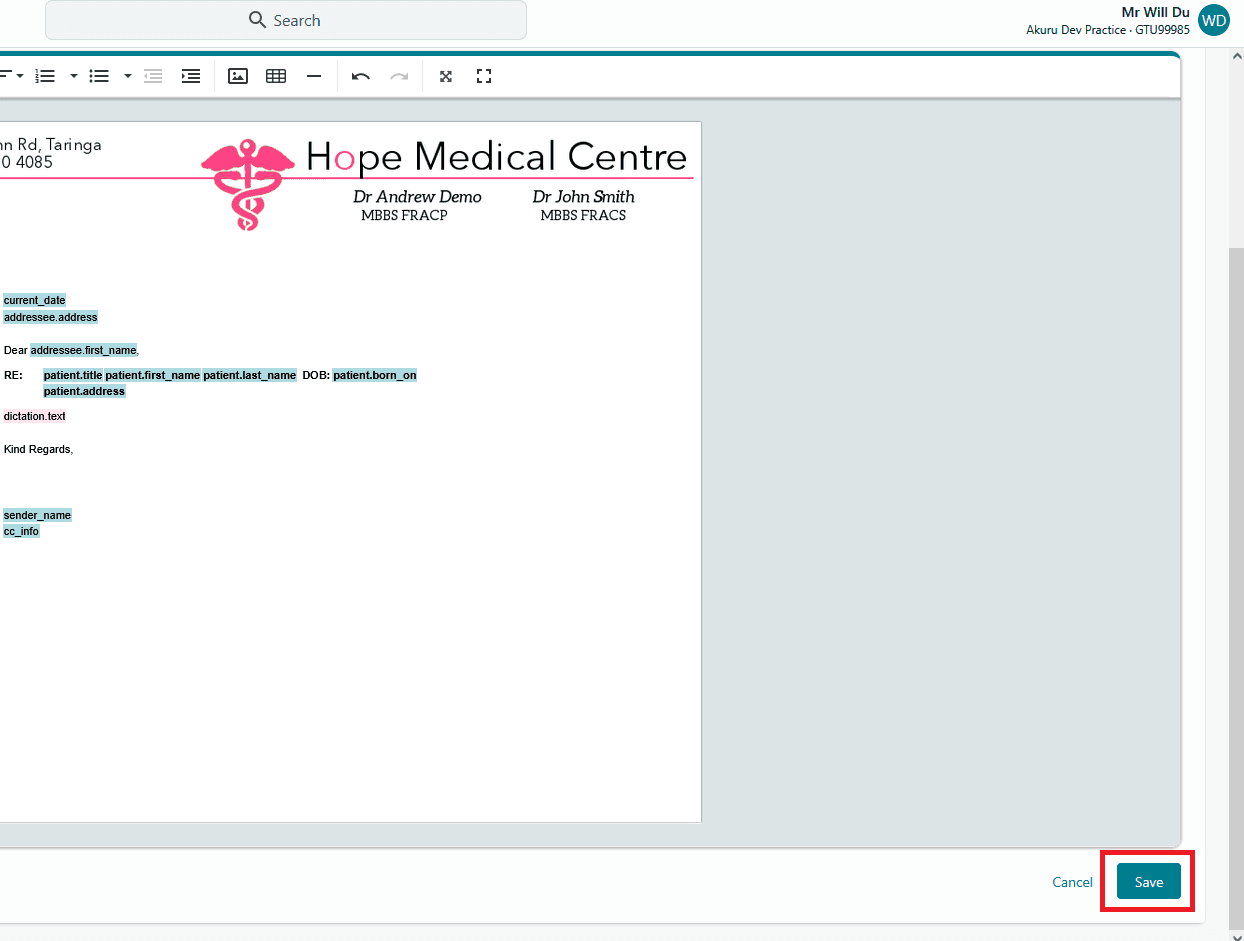
Screenshot 2025-03-30 163913 - To adjust the font (or font size) of the text that comes from i-scribe into Gentu: with the "dictation.text" selected, adjust font (or font size), and click "Save" on the bottom right.
- Save the letter template.
Screenshot 2025-03-30 163931
Setting up i-scribe
You should now be able to see your letter template in i-scribe. Follow the below steps to finish setup.
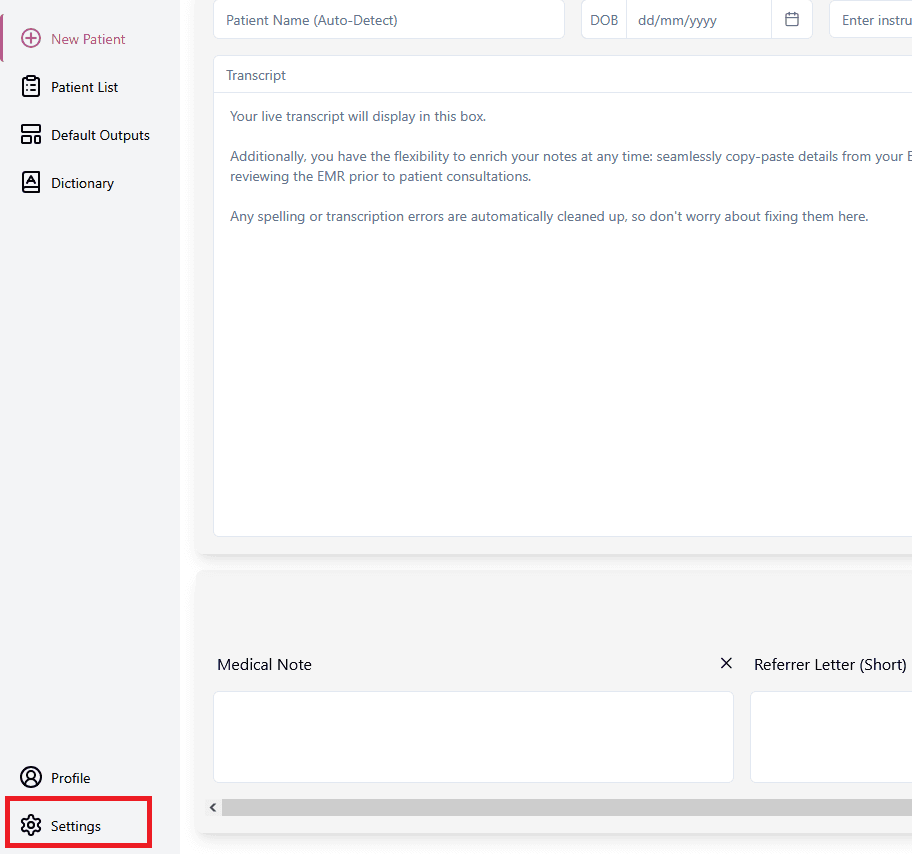
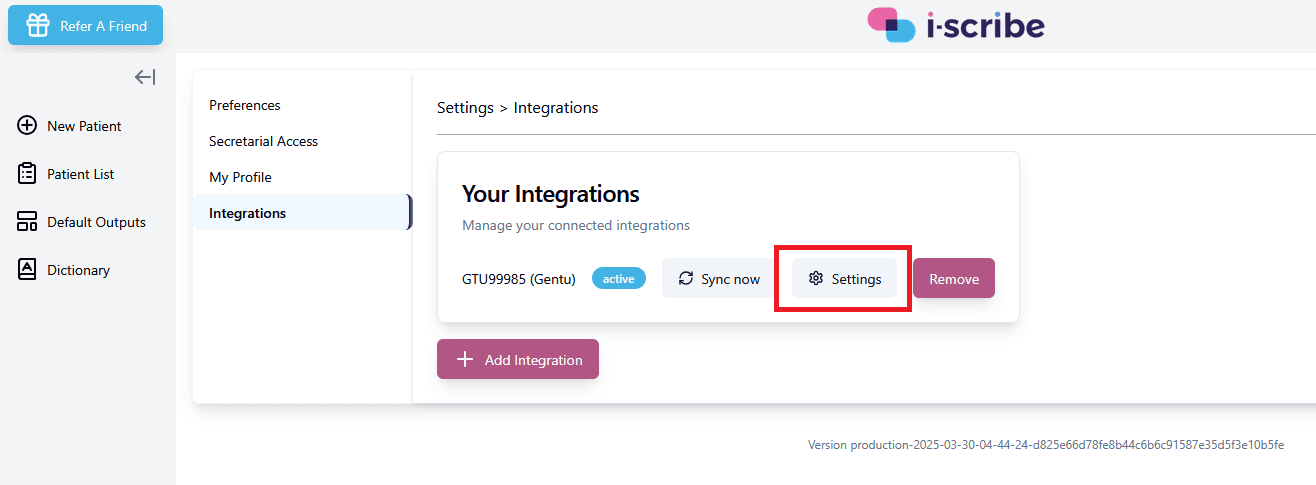
- In i-scribe, navigate toSettings > Integrations.
Screenshot 2025-02-25 171119 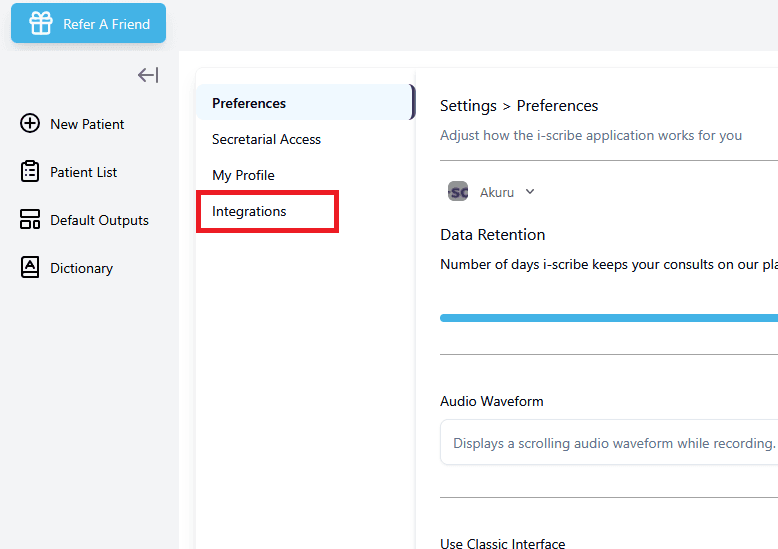
Screenshot 2025-02-25 171144 - SelectSettings for your Gentu integration.
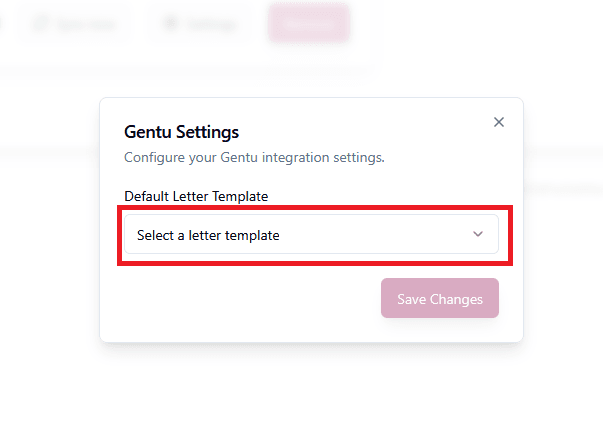
Screenshot 2025-03-30 164005 - In the Default Letter Template dropdown, select the letter template that you just created.
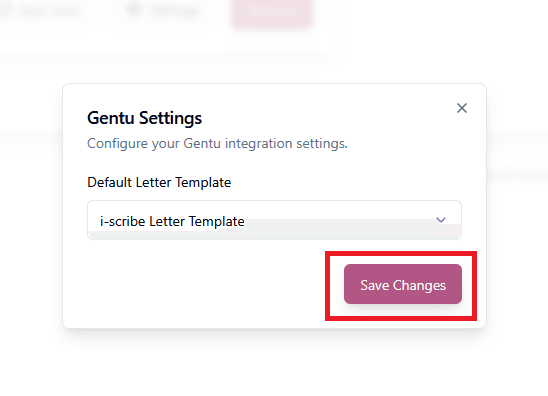
Screenshot 2025-03-30 164042 - Save Changes to save your settings.
Screenshot 2025-03-30 164057
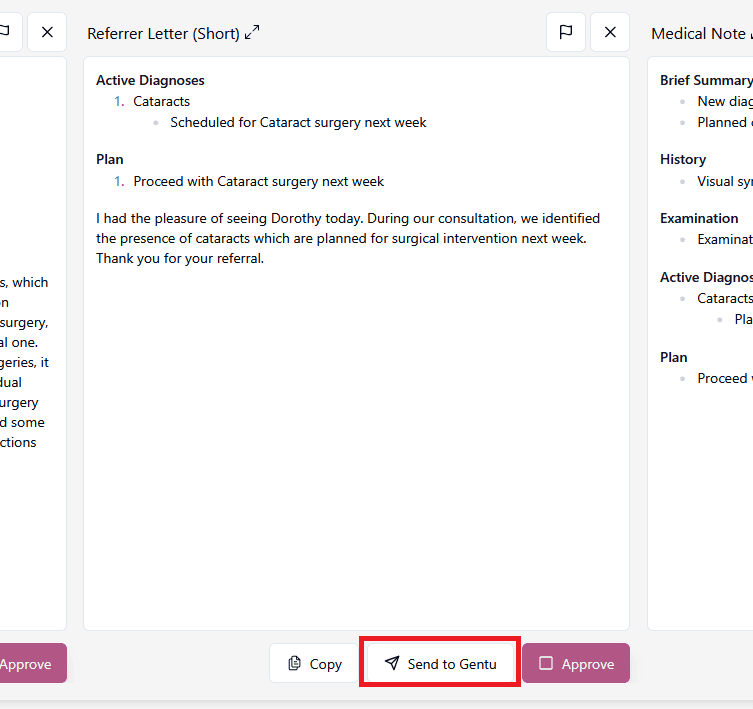
To send a letter into Gentu, open a consultation and click on the Send to Gentu button for a letter that you want to send.Clicking the button multiple times will send the letter multiple times. You can only send letters in consults created by Gentu.
Viewing Letters in Gentu
After sending a letter to Gentu in i-scribe, you will be able to view the letters in Gentu.
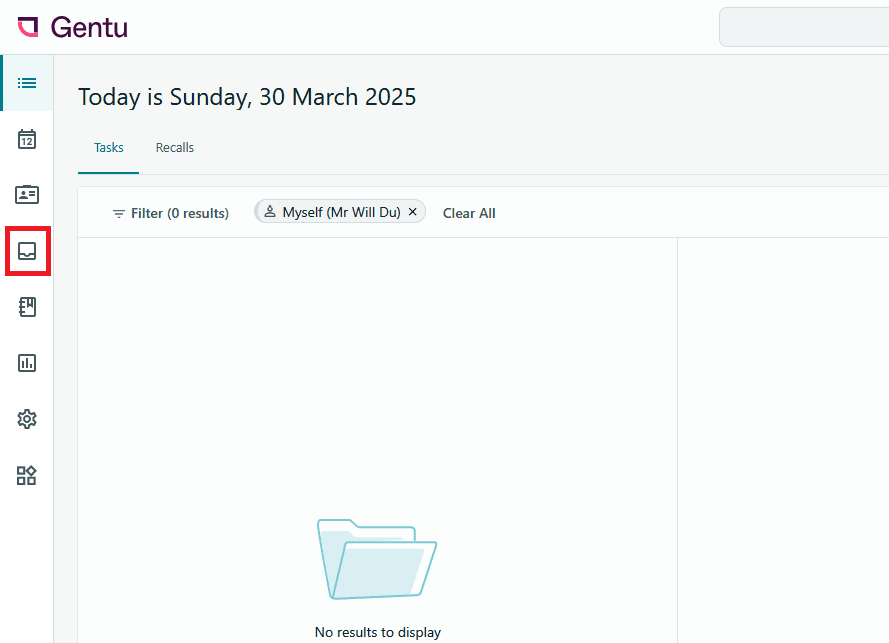
- ClickResults/Letters in the sidebar.
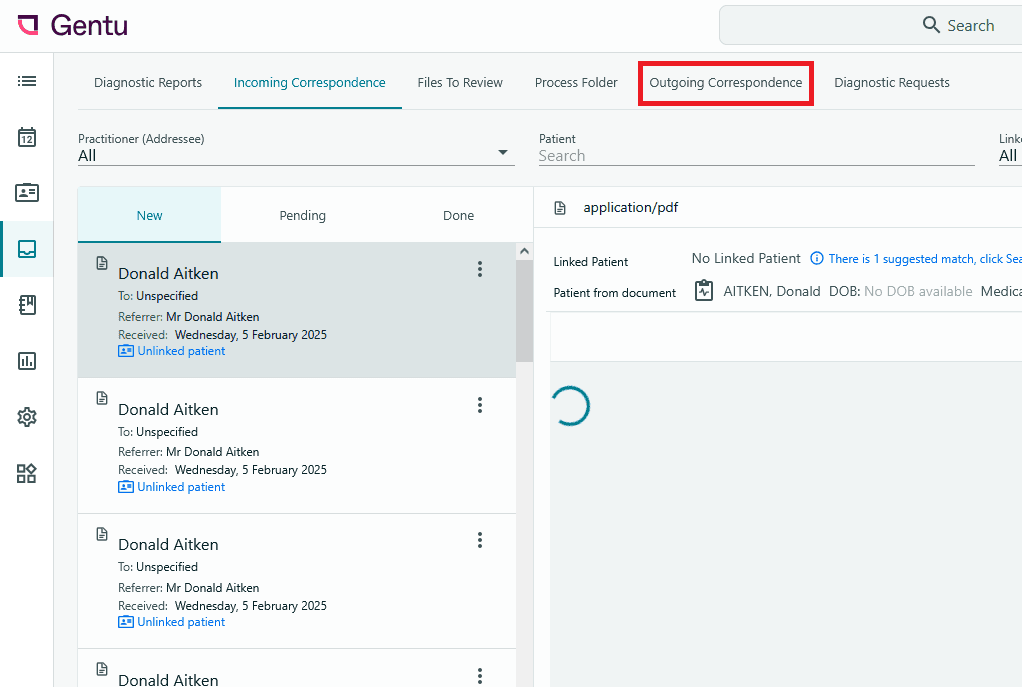
Screenshot 2025-03-30 164142 - SelectOutgoing Correspondence in the top tab.
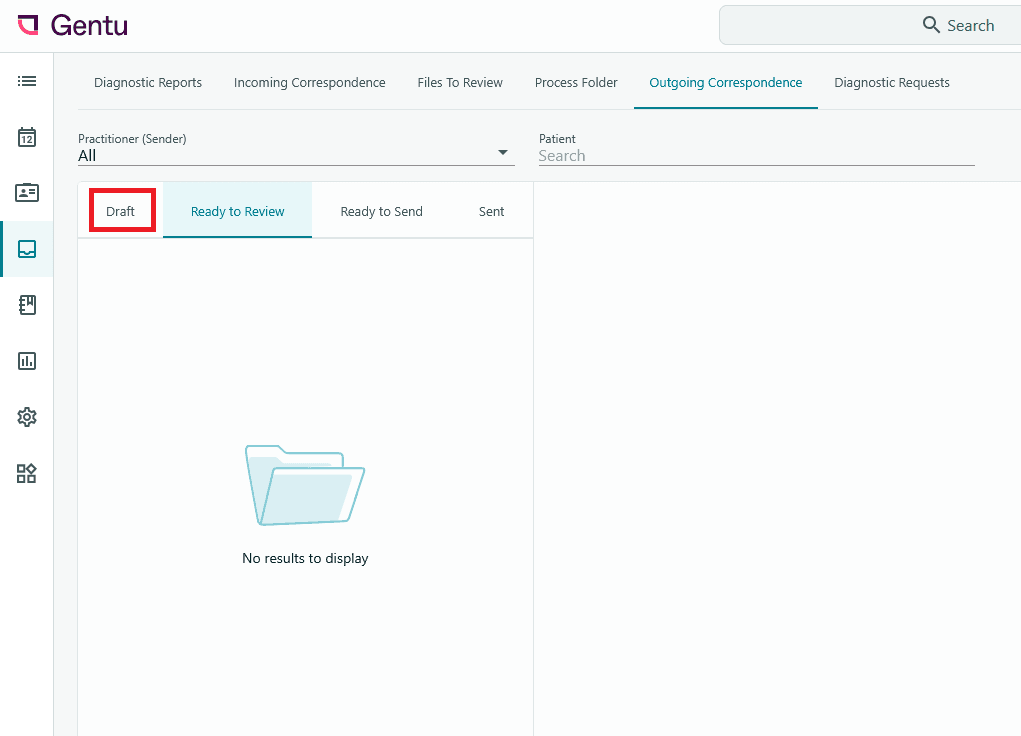
Screenshot 2025-03-30 164156 - In the Draft column, you should be able to see your letters from i-scribe.
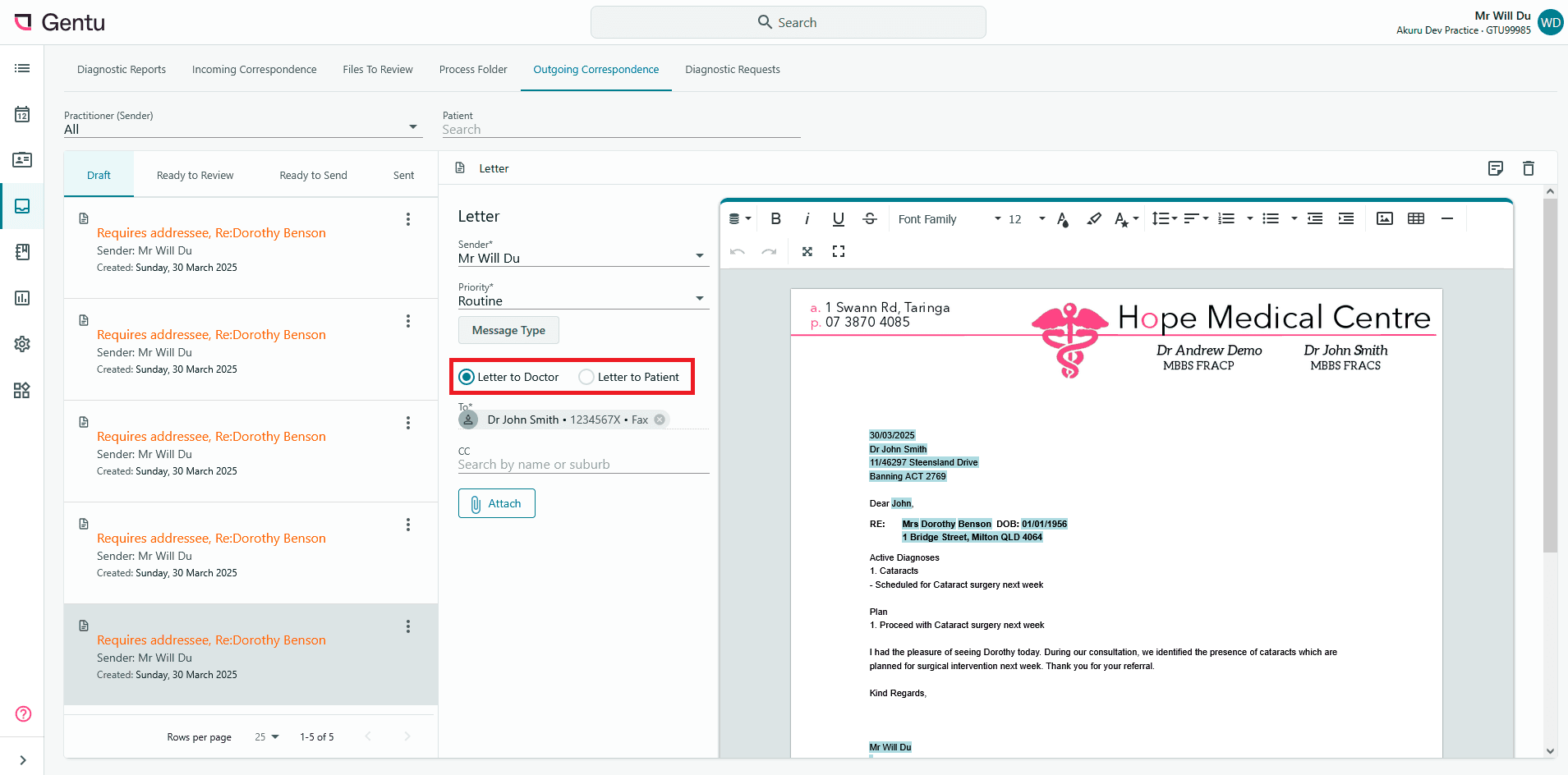
Screenshot 2025-03-30 164205 - You can choose whether the letter will be sent to the patient or the referrer using the radio buttons in Gentu.
Screenshot 2025-03-30 164239
Was this guide helpful?