Quick-start Guide: i-scribe interface overview
A waveform appears when audio is being input.
This guide provides an overview of key buttons and functions in i-scribe. Follow the steps below to understand how to transcribe, manage, and navigate through your records.
Starting a Transcription
- To begin transcribing a conversation or dictation, clickStart Recording.
Tip: i-scribe never stores audio files; it listens and transcribes audio only while the button is active.
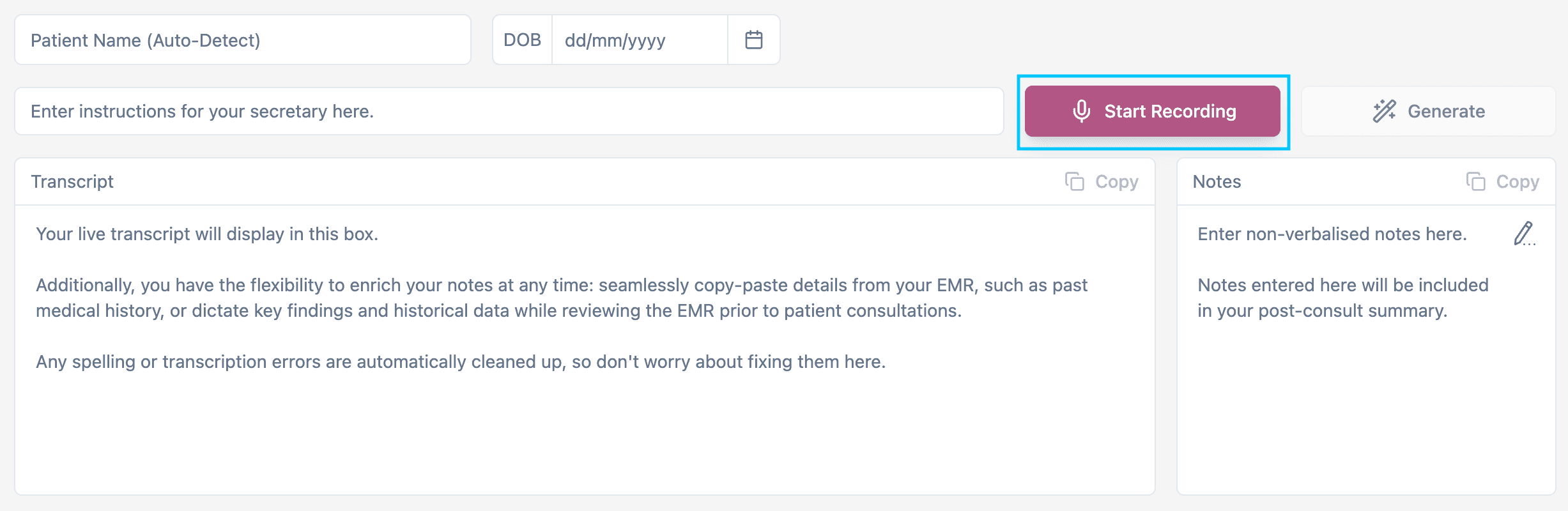
Image 1: The Start Recording Button is in the top right of the screen, next to the Generate button.
Awaveform appears when audio is being input.
To turn off the waveform, click Settings in the bottom left corner, select Preferences and deselectAudio Waveform.
Pausing a Transcription
- If you need to pause during your conversation or dictation, clickPause Recording.
- To restart, clickResumeRecording.
Generating Documents
- When you finish your conversation or dictation, clickStop andGenerate.
- Your documents will generate below the transcript box.
- Any documents selected as default templates will be generated automatically(Image 2).
** **

Image 2: In this example, the Templates are set to Dictaphone Mode - Smart and Medical Note.
Copying Documents
- To transfer your completed documents to your EMR or other storage system, clickCopy Text(Image 3).
- Open your EMR and paste the document in your chosen location.
** **
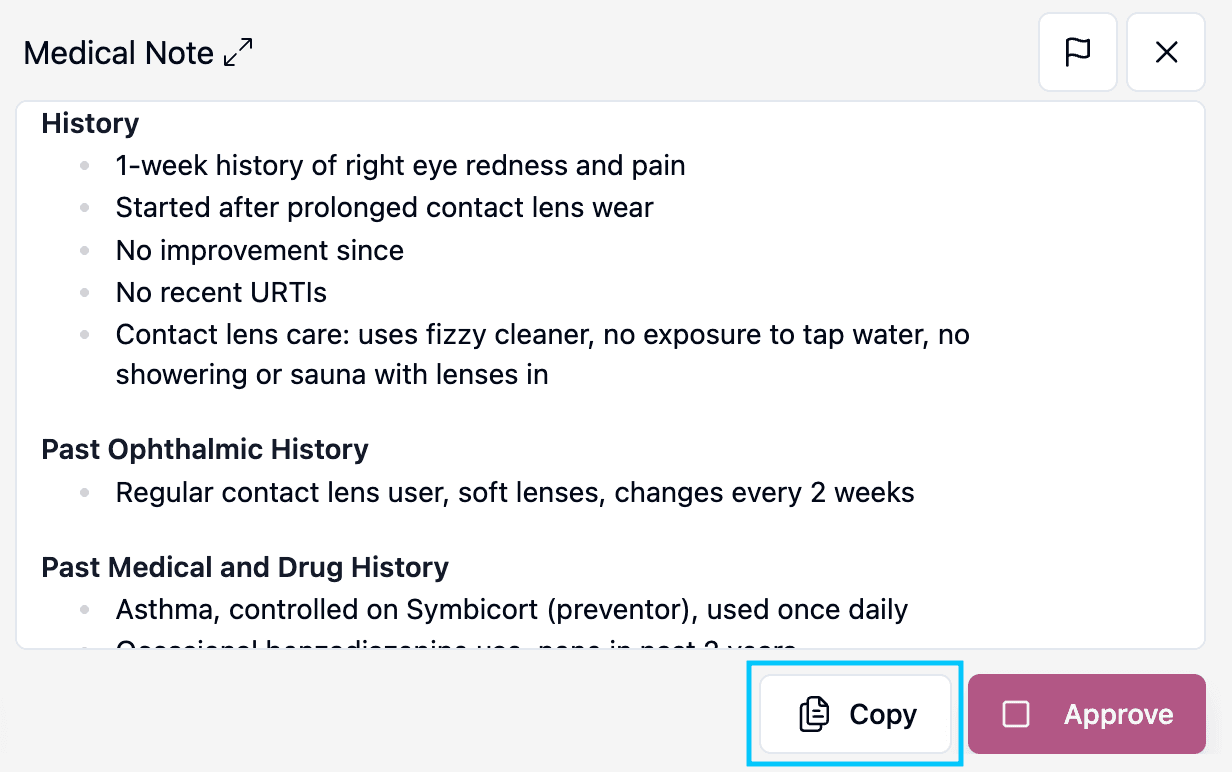
Image 3: Copy your document using the Copy Text button. You can also select Approve to notify your admin staff that there is a document ready to be actioned.
Allowing Admin Access for Document Management
- Once you've reviewed the document, click Approve(Image 3).
- You can type instructions for your admin team in theInstructions for Secretary box (e.g., "Please print the patient letter").
** **

Image 4: The secretarial instruction box is found at the top left of the screen.
Seeing the Next Patient
- When you're ready to see your next patient, clickNew Patient in the left hand panel.
- A new patient page will open. You may enter the patient’s name and DOB at the top of the page, or choose for it to autopopulate during your consult.
Accessing Past Patients
- To go back to a previous patient, clickPatient List in the left hand panel.
- Your past patients will be displayed in the list.
- Click on a patient’s name to reopen their encounter. Documents will remain stored in thePatient List for the duration set in your preferences.
Was this guide helpful?