Using the i-scribe Operation/Procedure Report
Using the i-scribe operation/procedure report
Use i-scribe to generate an Operation or Procedure Report by selecting the template within a new patient consultation, dictating your findings, clicking Generate, and then copying or sending the completed report to your EMR.
How to Use the i-Scribe Operation / Procedure Report
This guide explains how to create an Operation or Procedure Report using i-scribe, either as a default template or within an individual consultation.
Before You Begin
Ensure that you:
- Have access to your i-scribe account
- Have a new patient consultation open, either from:
- My Outpatient List, or
- My Inpatient List
Option 1: Set the Operation/Procedure Report as Your Default Template (Optional)
If you frequently create operation or procedure reports, you may wish to set this template as your default.
- Log in to i-scribe.
- Navigate to your template settings.
- Select Operation/Procedure Report as your default template.
- Save your settings.
This will automatically load the template for future consultations.
Option 2: Select the Operation/Procedure Report Within a Consultation
If you prefer to select the template per consult:
- Log in to i-scribe.
- Open a new patient consultation from:
- My Outpatient List, or
- My Inpatient List.
- Click Select Outputs.
- Search for and add Operation/Procedure Report.
- Confirm your selection.
Creating the Operation/Procedure Report
Once your consultation is open and the correct output template is selected:
- Click Start to begin dictation.
- Dictate your operation or procedure findings clearly.
- You may dictate punctuation (e.g. "full stop", "comma") if you prefer.
- Dictating punctuation is optional. The system will structure the report appropriately.
- When you have finished dictating, click Generate.
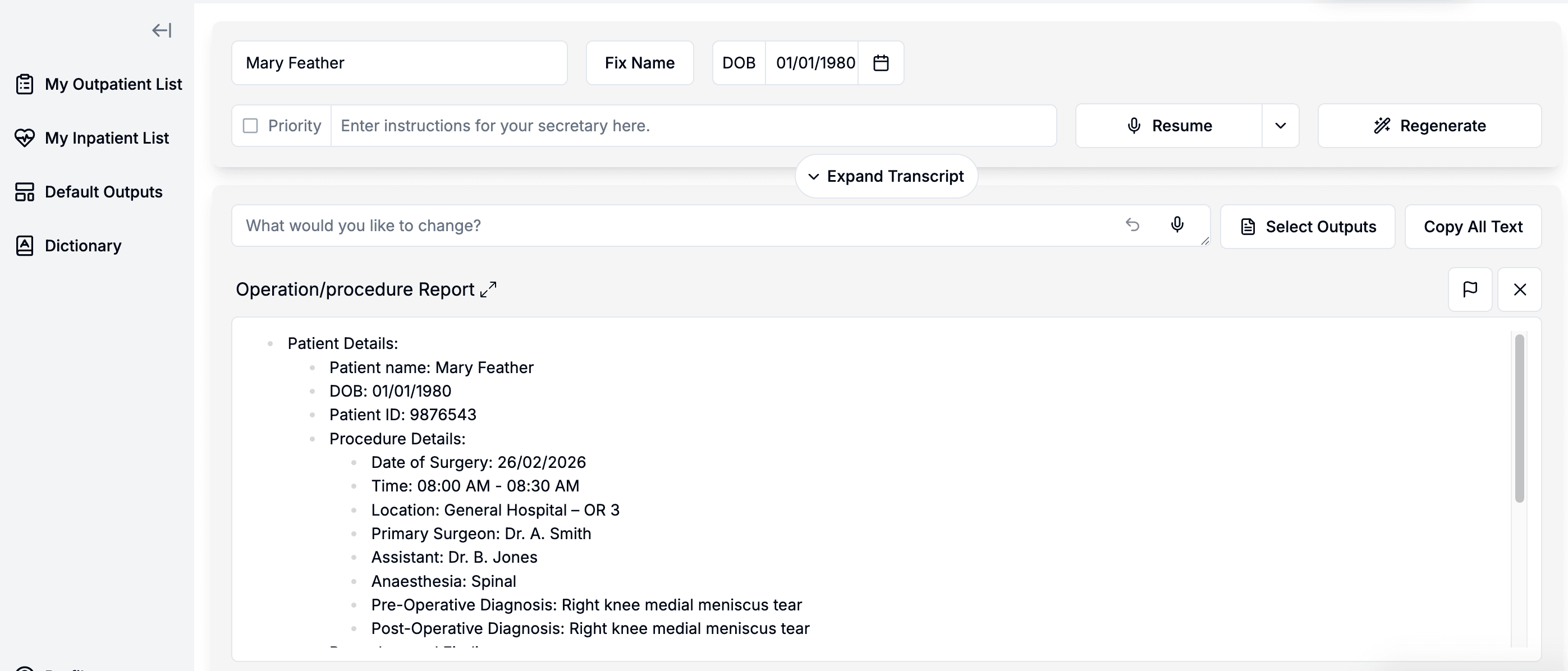
Finalising the Report
After clicking Generate:
- The Operation/Procedure Report template will automatically populate with your dictated content.
- Review the report for accuracy.
- You can then:
- Copy and paste the report into your EMR, or
- Send/export it directly to your EMR (if integrated).
Tips for Best Results
- Ensure you are in a new consultation before starting dictation.
- Speak clearly and at a natural pace.
- Include all relevant operative details in a logical order.
- Review the generated document before finalising.
Was this guide helpful?