Sync your appointments from your EMR
How appointment sync works in i-consult for web-EMR (Xestro) users: the import/review page buckets, consult-type mappings under Settings, and that only New Consult types create patient episodes.
If your practice uses a web-based EMR (Xestro), you don't enter appointments into i-consult by hand. The Akuru browser extension reads your upcoming appointments from the EMR and syncs them into i-consult, which creates patient episodes for the ones that need a pre-consultation questionnaire. This article covers what happens at the i-consult end: reviewing the import and mapping your appointment types.
Installing and running the sync is a browser-extension job, not an i-consult one. To set up the extension and trigger a sync, see the browser-extension product's article Sync your appointments to i-consult. This page picks up once the appointments have arrived in i-consult.
What the sync does at the i-consult end
When a sync runs, i-consult shows an import / review page that compares the incoming appointments against what it already knows. Each appointment falls into one of these buckets:
- created: a new appointment that will create a new episode.
- changed: an appointment that already exists but whose details changed.
- cancelled: an appointment that was cancelled in the EMR.
- unchanged: already in i-consult, nothing to do.
- excluded: an appointment type you've mapped as not needing a questionnaire.
- unmapped: an appointment type i-consult hasn't been told how to classify yet.
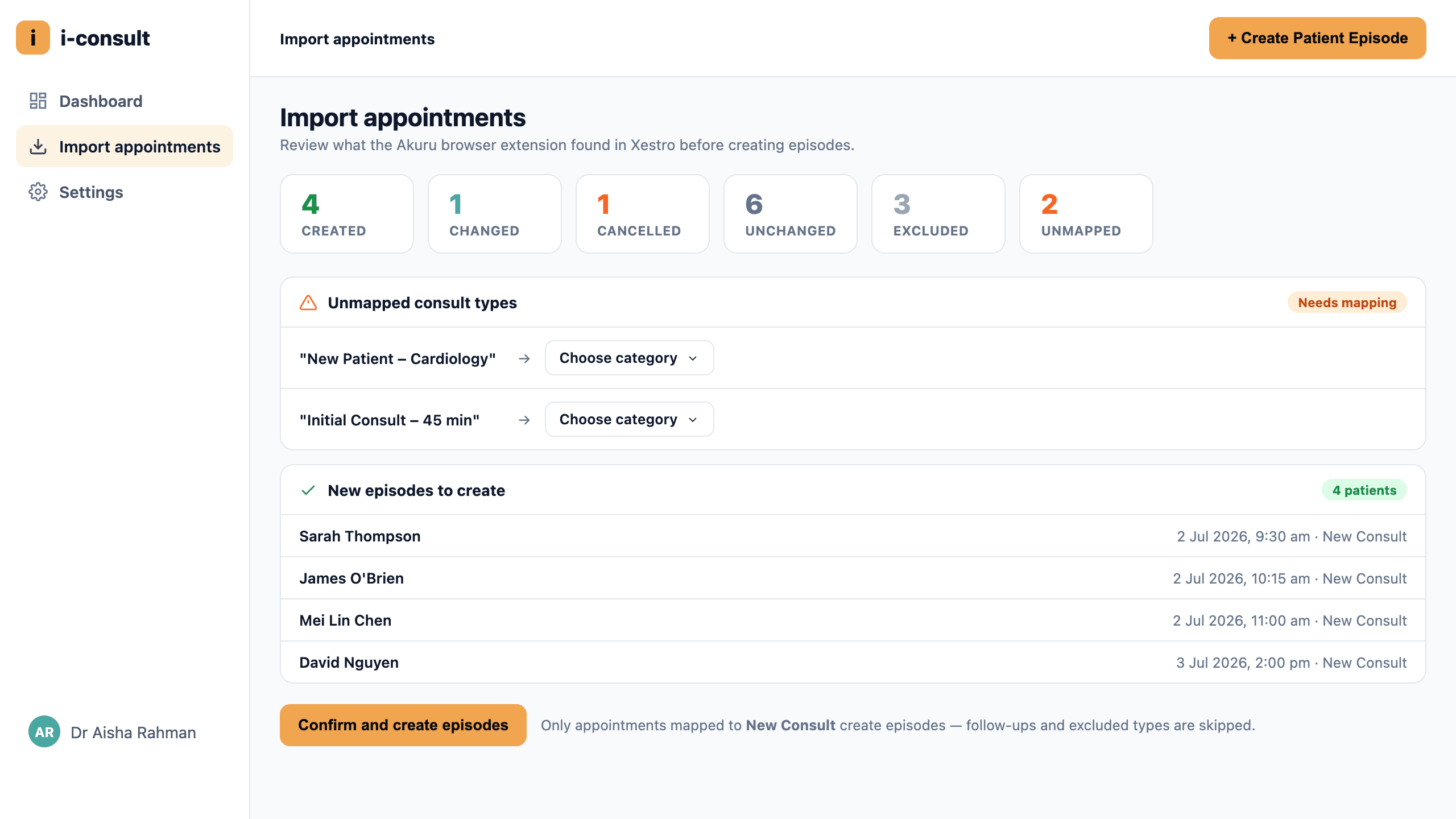
Only "New Consult" appointment types create episodes. Follow-ups and excluded types are filtered out and won't generate a questionnaire. Anything in the unmapped bucket won't create an episode until you classify its appointment type, so check for unmapped items after a sync.
Map your appointment types
You classify each EMR appointment type once, and i-consult reuses that mapping for every future sync.
Go to Settings → Integrations.
Open the Browser Extension card for your EMR (for example, "Browser Extension - xestro") via Details →.
For each appointment type, set how it should be treated: typically New Consult (creates an episode) or excluded.
Save your mapping.
Re-run the sync from the extension. Previously unmapped types now fall into the right bucket.
What you'll see
After a sync, the import / review page lists the appointments grouped by bucket so you can see at a glance what's new, what changed, and what was filtered out. The episodes created here behave exactly like any other: i-consult schedules the questionnaire SMS, the patient completes it, and the history flows into your i-scribe transcript box. The extension reconciles each time, so re-syncing won't create duplicates.
If it doesn't work
- The sync isn't working at all → see The browser-extension sync isn't working. The most common cause is i-scribe not being open in the same browser window when you run the sync.
- Appointments synced but didn't create episodes → check the unmapped and excluded buckets, and confirm the type is mapped to New Consult under Settings → Integrations → Browser Extension.
- You need to install or set up the extension → see the browser-extension product's Sync your appointments to i-consult.
Was this guide helpful?